
Install EPOS360 from the APK file
For terminals with no app store, or when you want the newest release — the APK usually lands a few days before the stores. You will update it manually from then on.
WHO THIS IS FOR
Terminals without Google Play
or the App Store.
Merchants who want the newest build
as soon as it is released.
BEFORE YOU BEGIN
Android 8.0 or higher — check at whatismyandroidversion.com on the device.
No automatic updates. Each new release means downloading and installing the APK again.
THE STEPS
Pick the device in front of you.
Open the download page
Scan the QR code with the device camera, or open epos.com/page/landing/download.html in the browser. Tap the blue Download EPOS360 Now button.

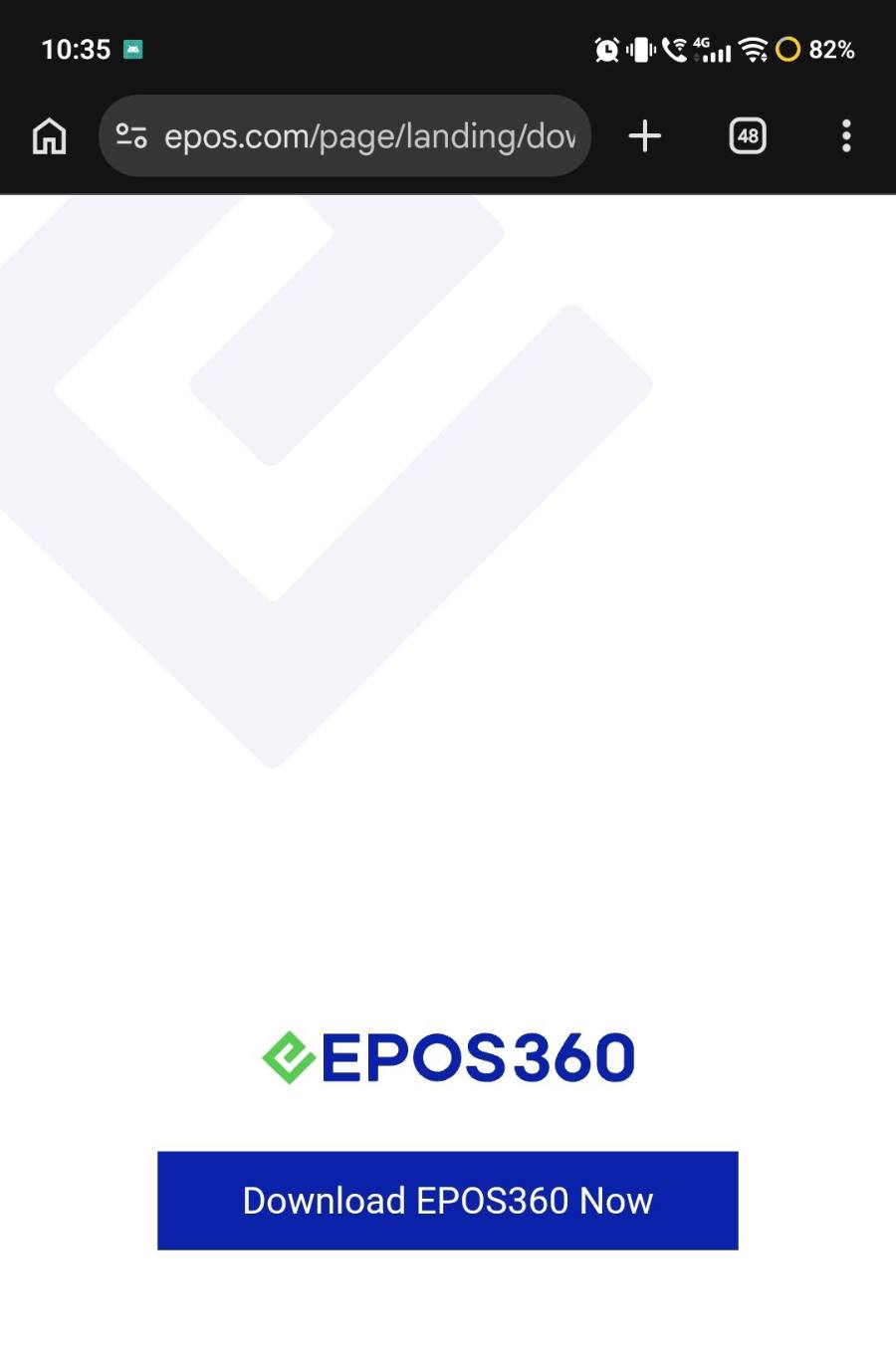
Download the APK
Android will warn that the file might be harmful — that is standard for any APK. Tap Download anyway, wait for the file to finish, then tap Open.
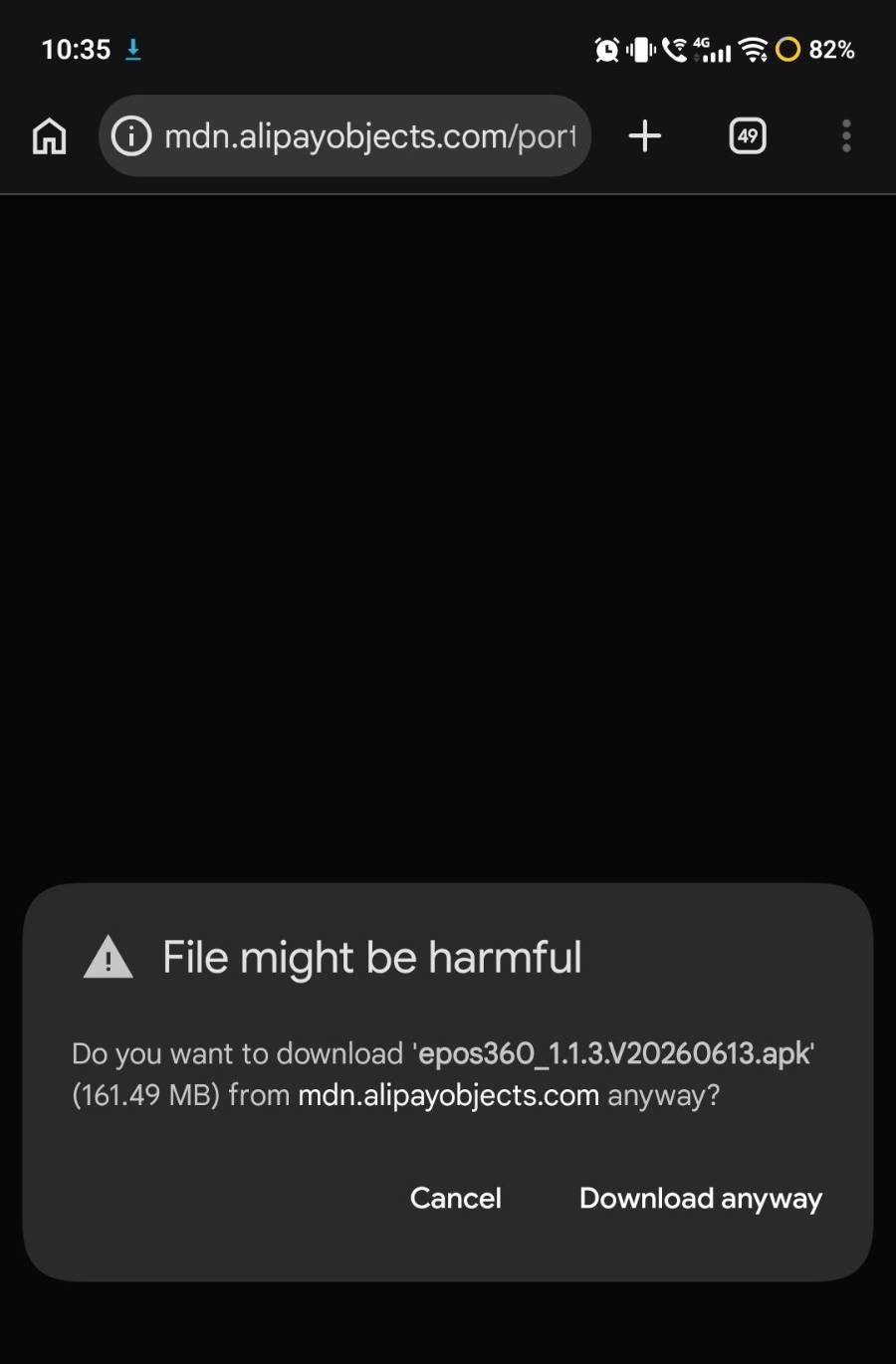
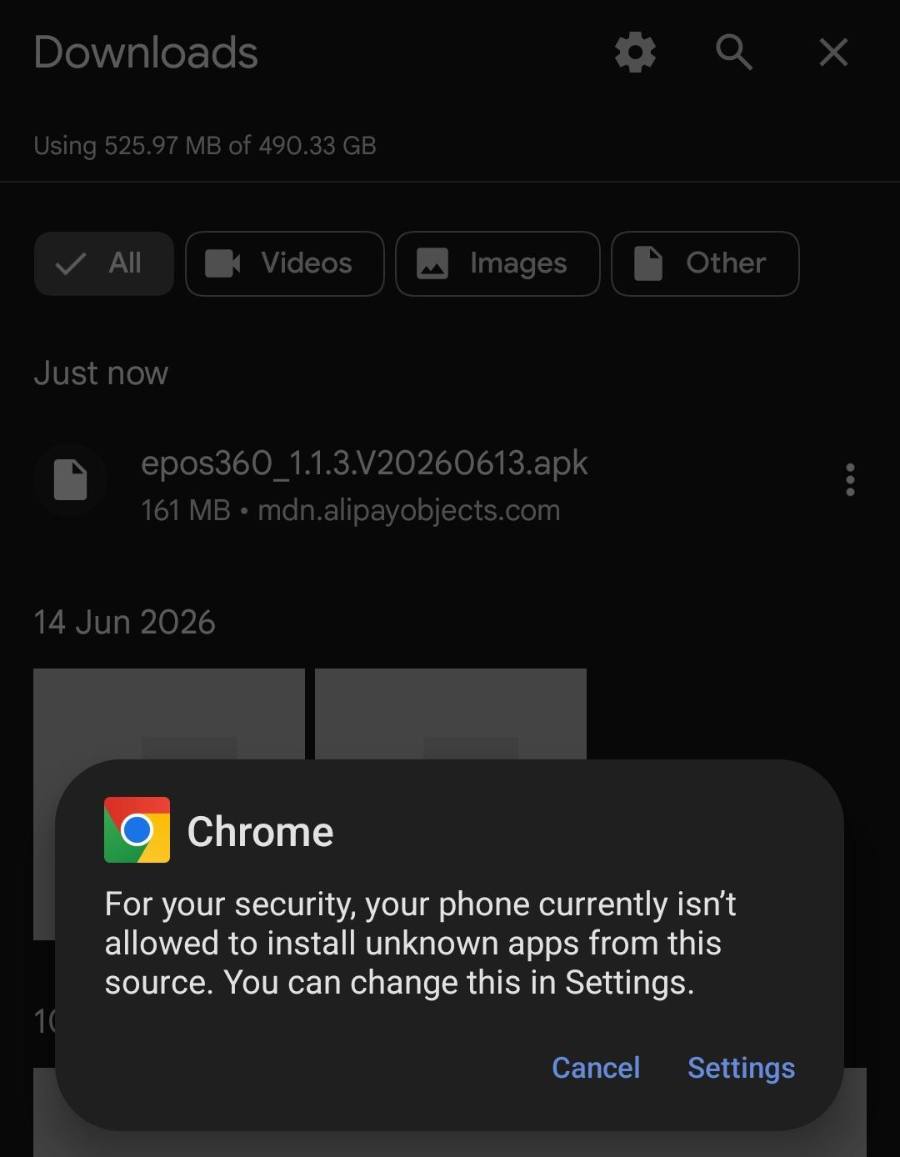
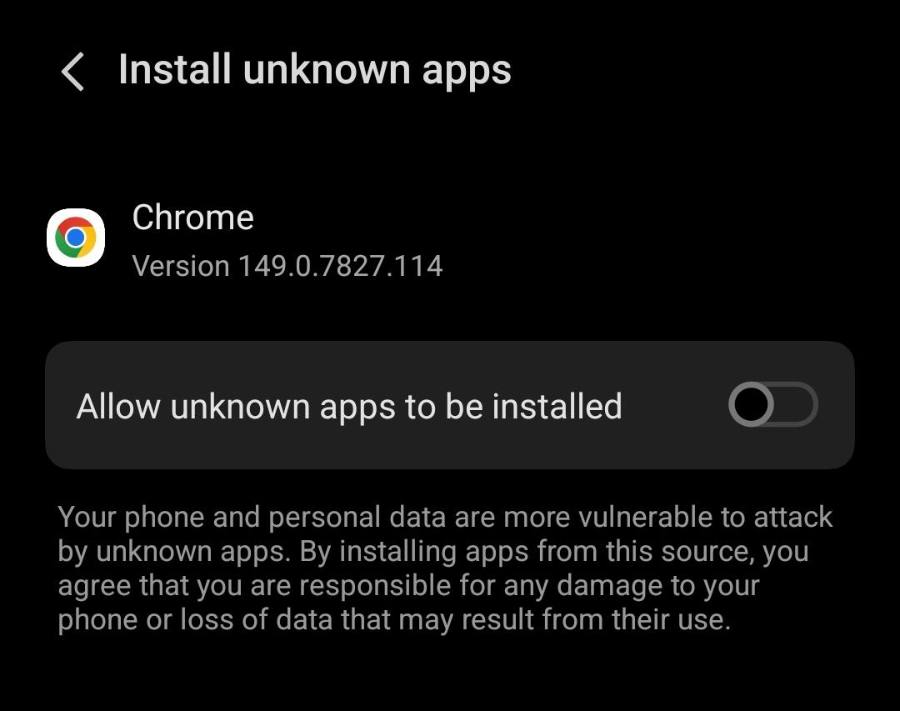
Allow the install
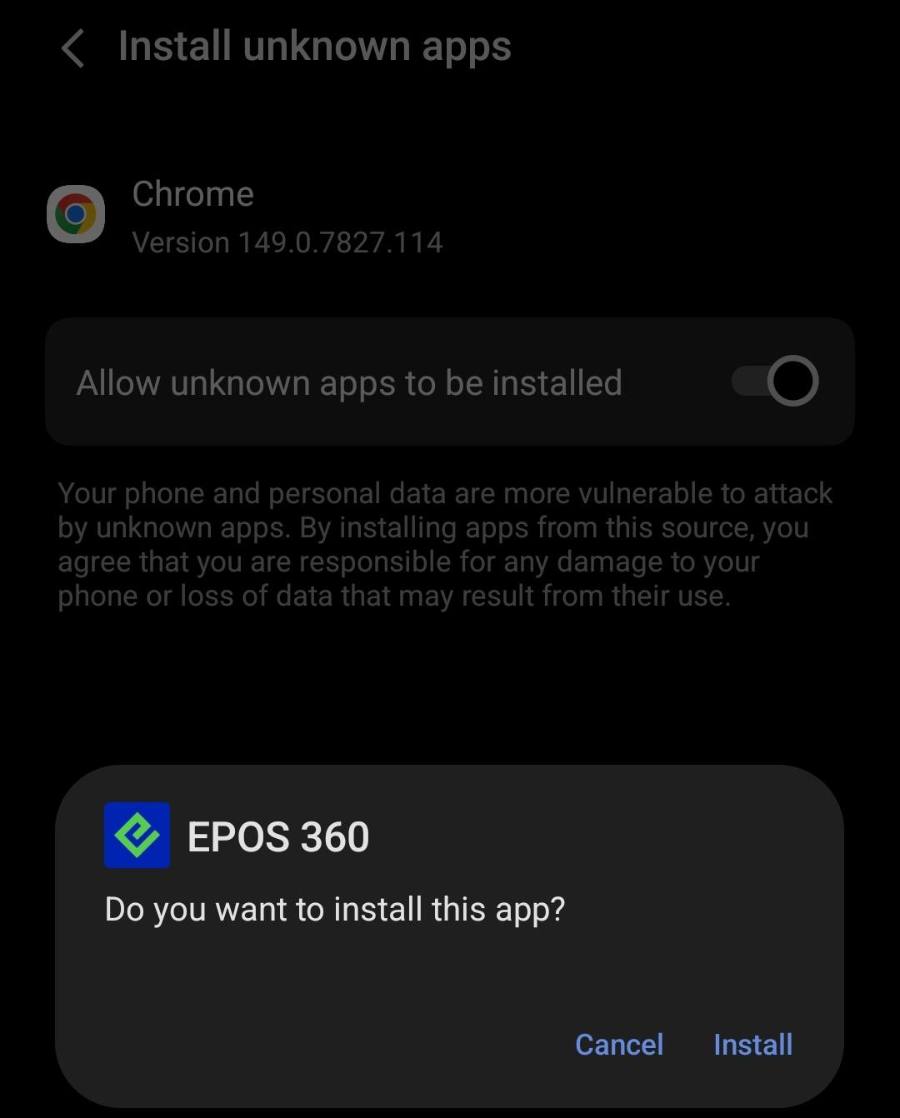
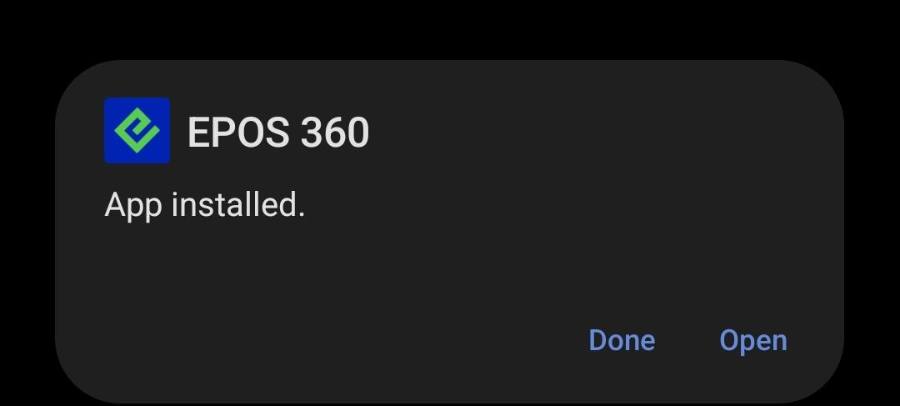
Android will say your browser is not allowed to install unknown apps. Tap Settings, switch Allow from this source on, go back and tap Install. When it finishes, tap Open.
Pick your country
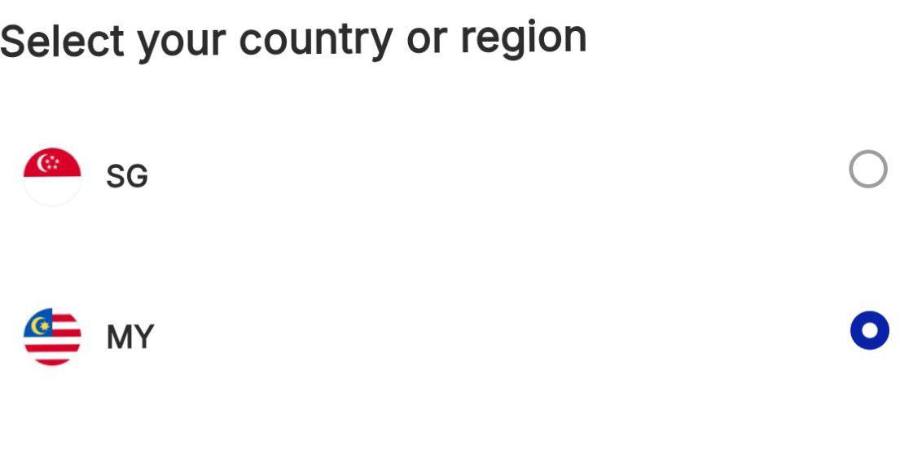
Tick your country or region — MY or SG — and tap Continue.
IF IT LOOKS WRONG
Install is blocked
Allow from this source has to be on for the browser you downloaded with. Turn it on, then reopen the file from your downloads.
The warning worries staff
Android shows it for every APK. As long as the file came from the epos.com download page, tap Download anyway.
Running an old version
APK installs never update themselves. Revisit the download page and install the newer file over the top.
