
Sign up with email
New to EPOS? Create an account with any email address, verify it with a code, tell us a little about the business, and you are trading.
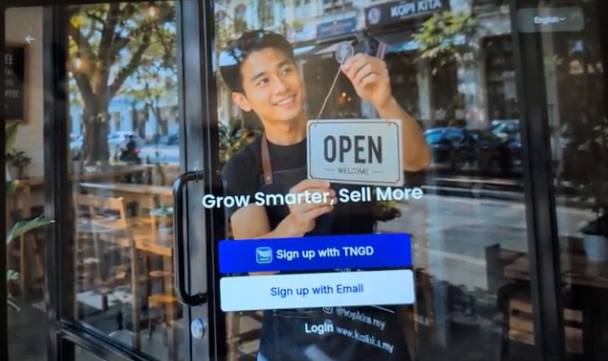
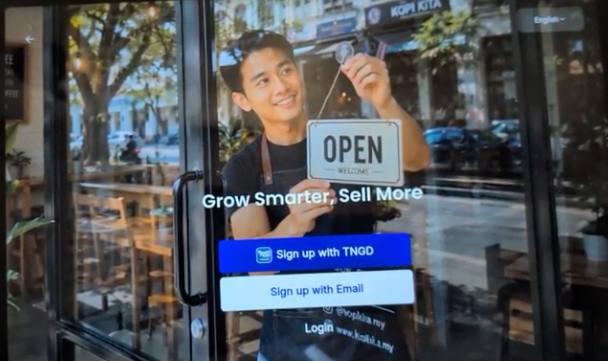
Sign up with TNGD is for existing Touch ’n Go merchants; Sign up with Email is this guide.WHO THIS IS FOR
New merchants
with no Touch ’n Go merchant account yet.
Anyone trying EPOS360 out
before connecting payments and hardware.
BEFORE YOU BEGIN
Already a Touch ’n Go merchant? Use Sign up with TNGD instead, so your existing business profile carries over.
Use an inbox you can open now. A verification code is sent there before you can continue.
Passwords need at least 8 characters. Pick something staff will not need written on the counter.
THE STEPS
Pick the device in front of you.
Sign up with email
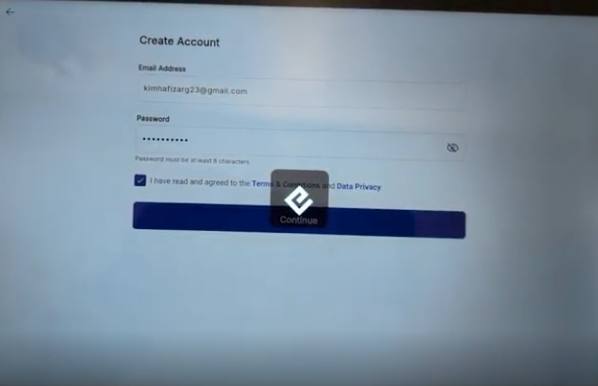
On the welcome screen, tap Sign up with Email. On Create Account, enter your email address and a password of at least 8 characters, tick to accept the Terms & Conditions and Data Privacy notice, then tap Continue.
Verify with the OTP
EPOS emails a one-time code to the address you entered. Open that inbox, then key the code into the app. If it does not arrive within a minute, check spam and request a new one.
Add your business details
Fill in the short business form — the basics about what you sell and where — and that is it. You land in EPOS360 ready to build your menu.
The business name you enter here is what the AI assistant uses later to generate your store logo and banners.
IF IT LOOKS WRONG
Continue stays greyed out
The password must be at least 8 characters and the Terms tick box must be checked.
The code never arrives
Check spam, confirm the address has no typo, then request a fresh code. Old codes expire.
Email already in use
An account exists on that address. Log in instead, or reset the password with an OTP.
