
Add a team member
Each person gets a role, an hourly wage and their own 6-digit PIN. From then on the terminal records who took every order, and payroll works itself out.
Rather not read? Skip to the video walkthrough at the bottom of the page.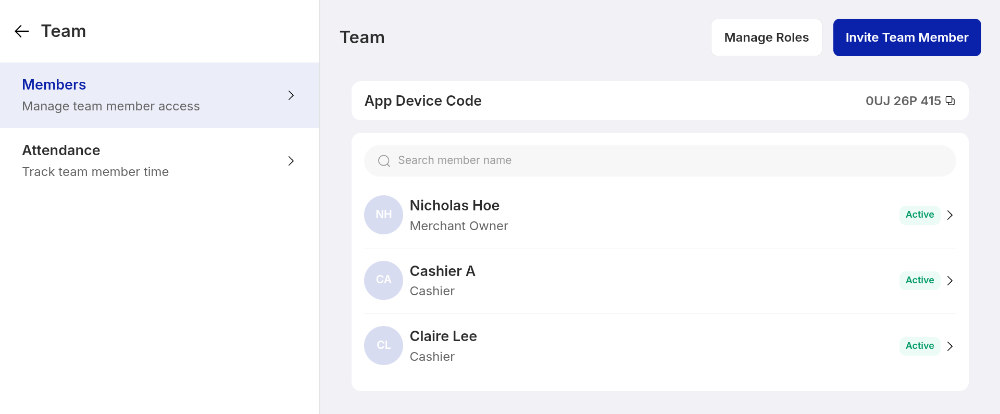
WHO THIS IS FOR
Owners and managers
— only the main account can create logins and reset PINs.
Anyone onboarding new staff
who should be on the till by their next shift.
BEFORE YOU BEGIN
Decide the role first. Store Manager and Cashier reach different parts of the terminal, so pick before you invite.
Set the hourly wage if you want labour costs. Total Manpower Cost in the Insights Centre is calculated from it.
One PIN per person, never shared. The PIN is how the system attributes actions, so a shared code makes the records worthless.
THE STEPS
Pick the device in front of you.
Open Team
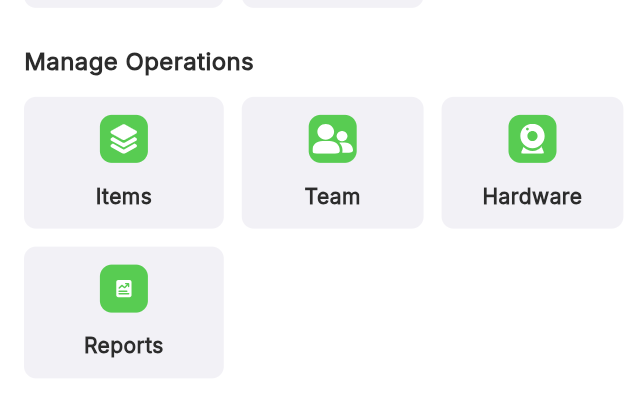
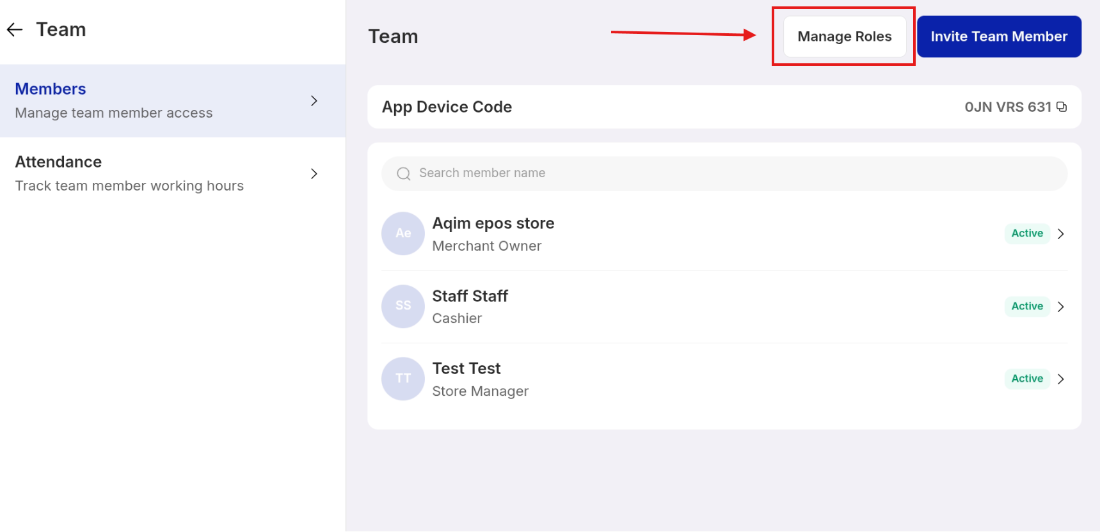
On tablet, tap the four-square icon and choose Team under Manage operations. On phone, tap More at the bottom right, then Team. You land on Members, your staff directory.
Fill in the member
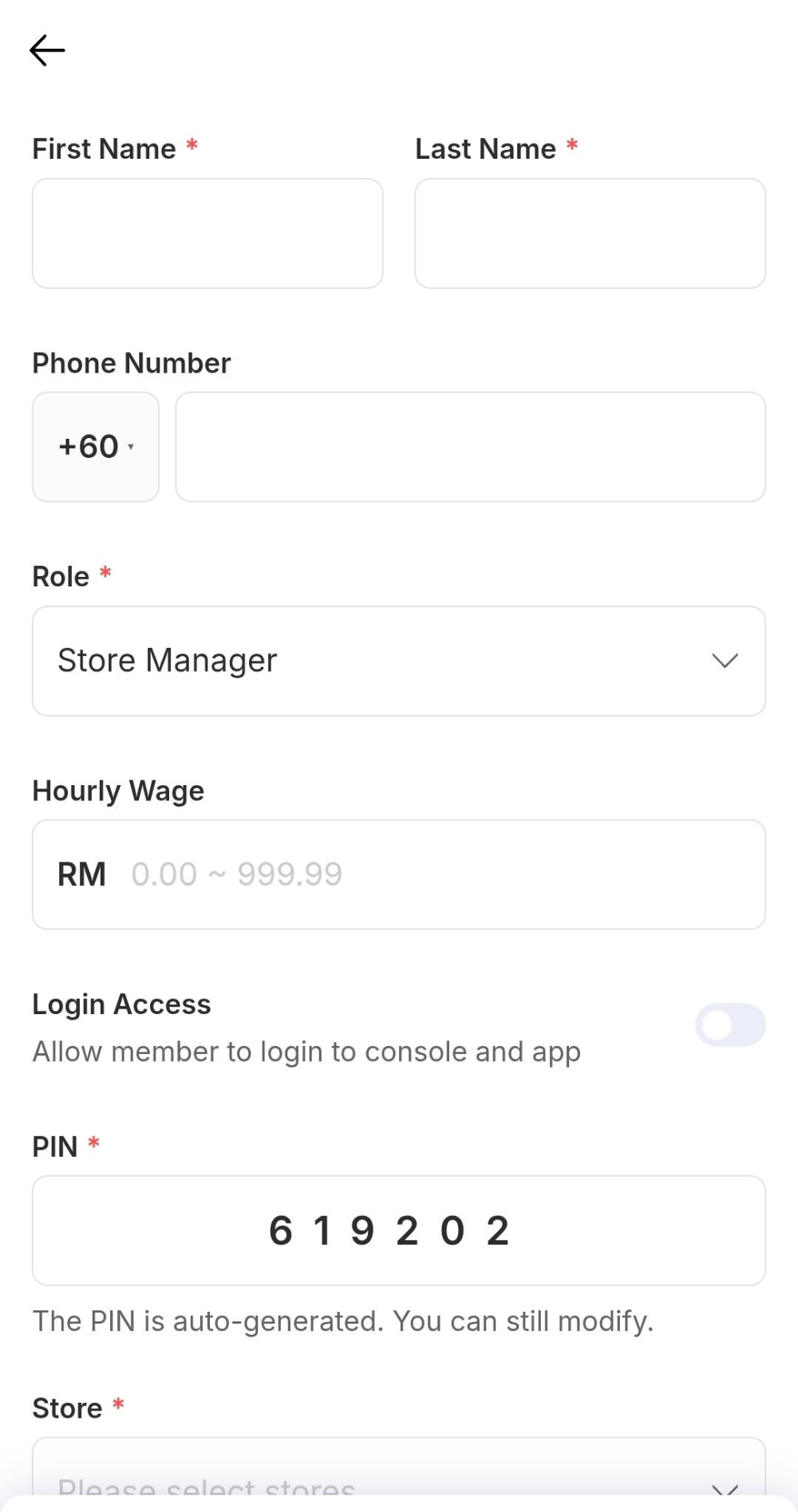
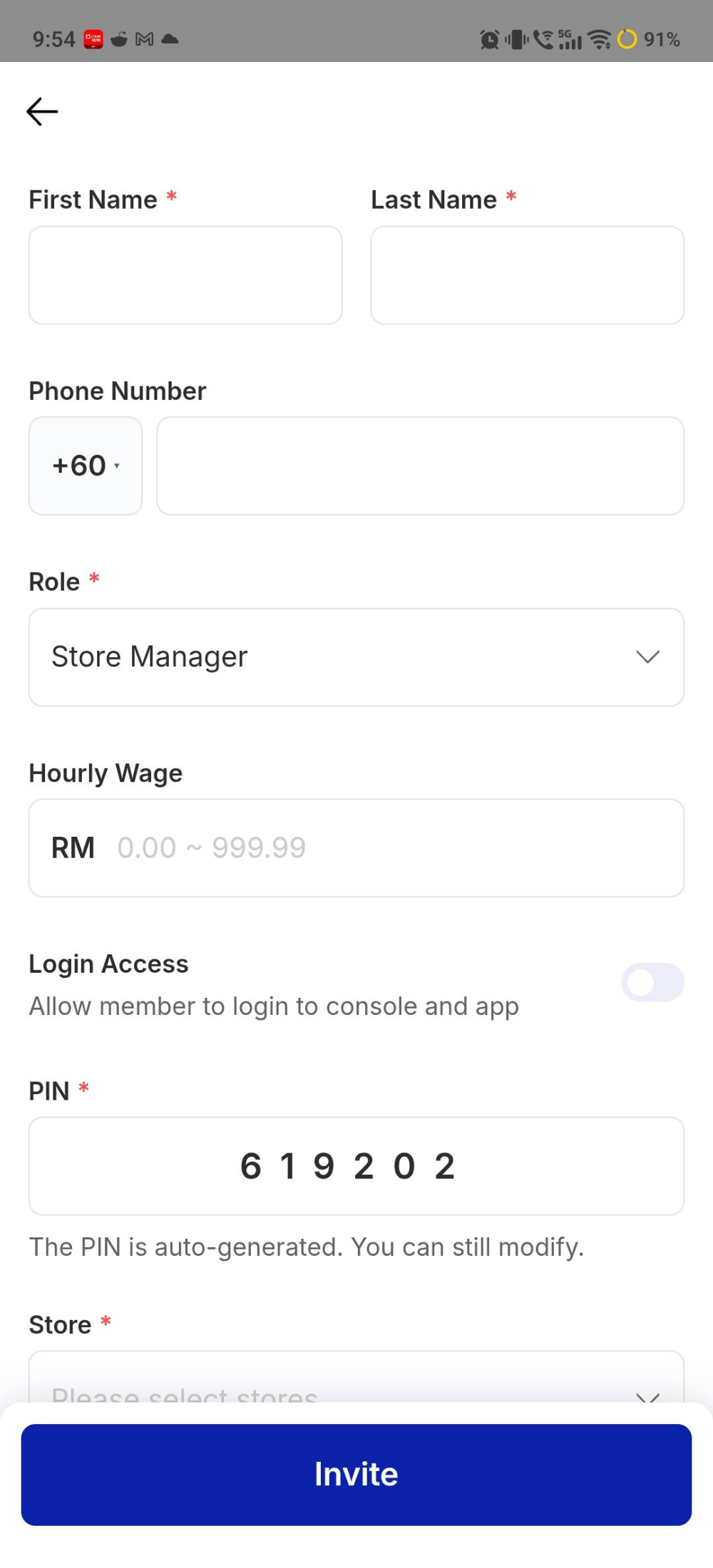
Tap Invite Team Member — top right on tablet, at the bottom on phone — and complete the form.
Set the PIN and store
The PIN is auto-generated, and you can overwrite it — clear the box and type a unique 6-digit code. Then open Store, tick the outlet this person works at, and tap Confirm. Finish with Invite. A confirmation shows the 6-digit code alongside New team member added successfully — note it down for them, then tap Done.
Forgotten PIN? The main account owner can reset it from the member’s profile in Team. Staff never need to reinstall anything.
Edit what each role can do
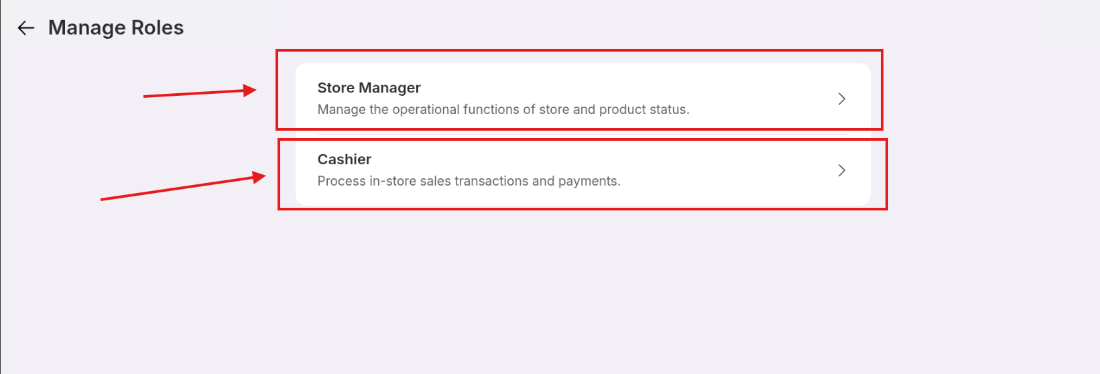
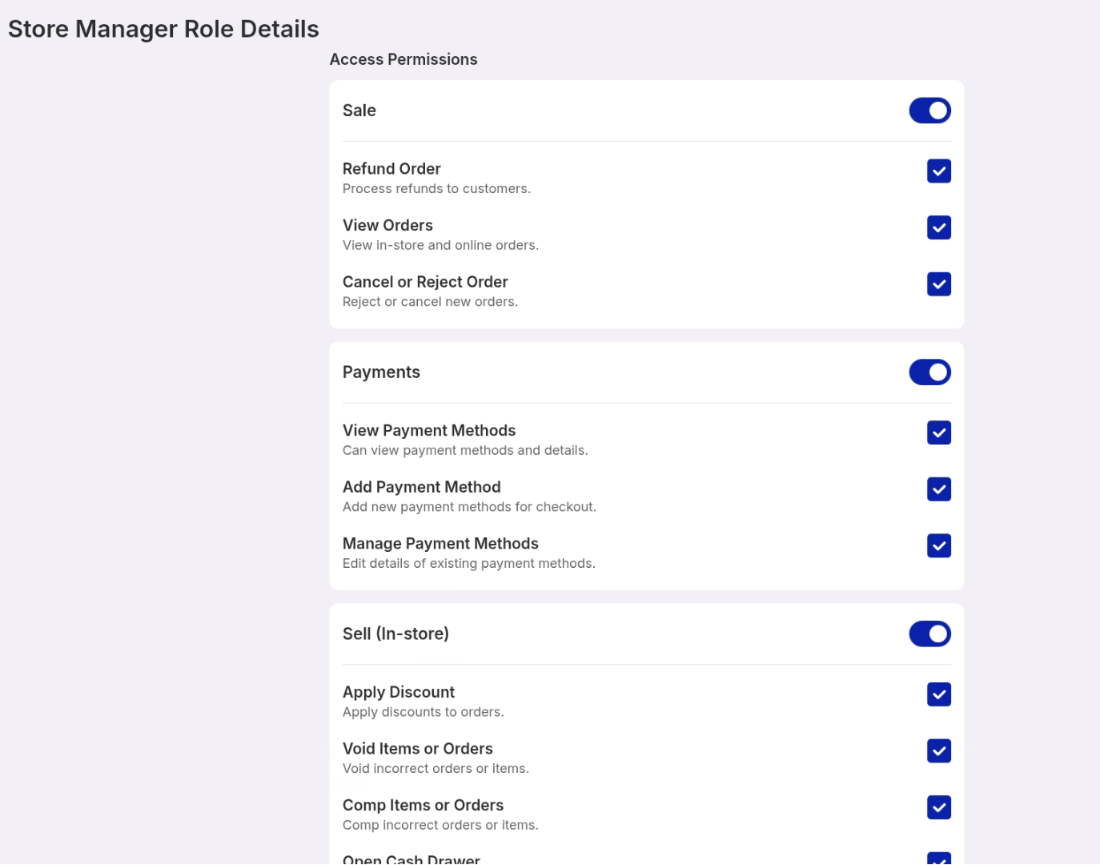
On the Team screen, tap Manage Roles at the top right. Pick Store Manager or Cashier to open its role details, then work down Access Permissions. Each area — Sale, Payments, Sell (In-store) and the rest — has a master switch, with tick boxes underneath for the individual actions such as Refund Order, Apply Discount, Void Items or Open Cash Drawer.
Permissions belong to the role, not the person. Change the Cashier role and every cashier on your team changes with it.
WATCH IT INSTEAD
Tablet walkthrough
IF IT LOOKS WRONG
Invite will not save
Name, role, PIN and store are all required. The starred fields must be filled before the button works.
Someone forgot their PIN
Open their profile in Team as the account owner and set a new 6-digit code. It takes effect immediately.
They cannot reach a screen they need
That is the role doing its job. Change the role on their profile, or adjust it under Manage Roles.
