
Clock in and out with photo verification
Switch on the Attendance add-on and the terminal becomes the time clock. Staff pick their name, key their PIN and take a selfie, and every shift is timestamped.
WHO THIS IS FOR
Managers paying by the hour
who want a timesheet they can trust.
Staff starting a shift
— step 2 is the part they do, and it takes seconds.
BEFORE YOU BEGIN
Add your team first. Staff clock in by picking their name and PIN, so their profiles must exist.
Activation covers every store on the account, and it needs the camera. Allow camera access when asked.
THE STEPS
Step 1 is done once by a manager. Steps 2 and 3 are the daily routine.
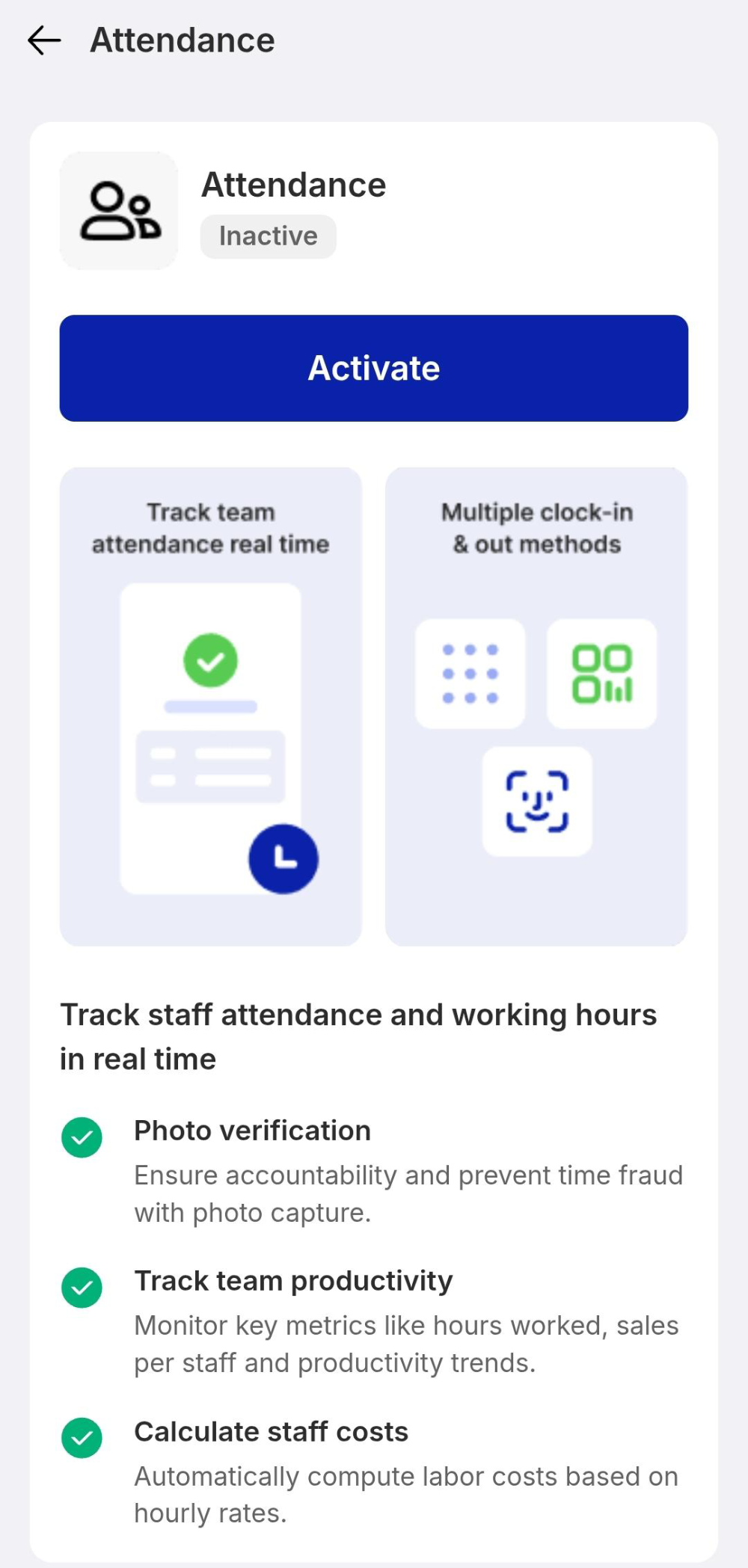
Activate the add-on
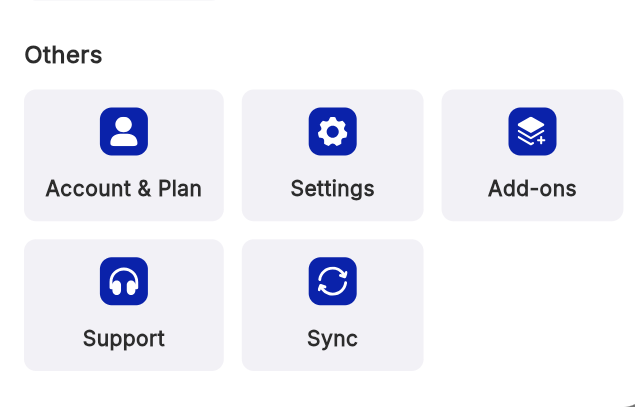
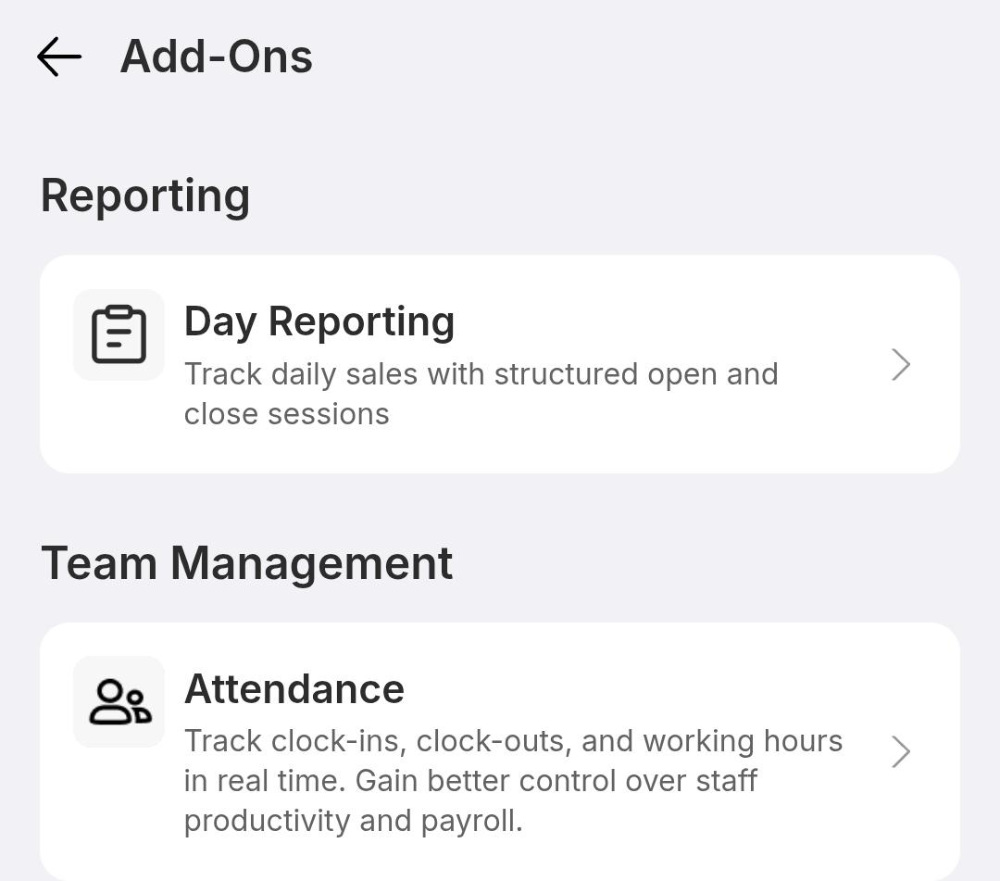
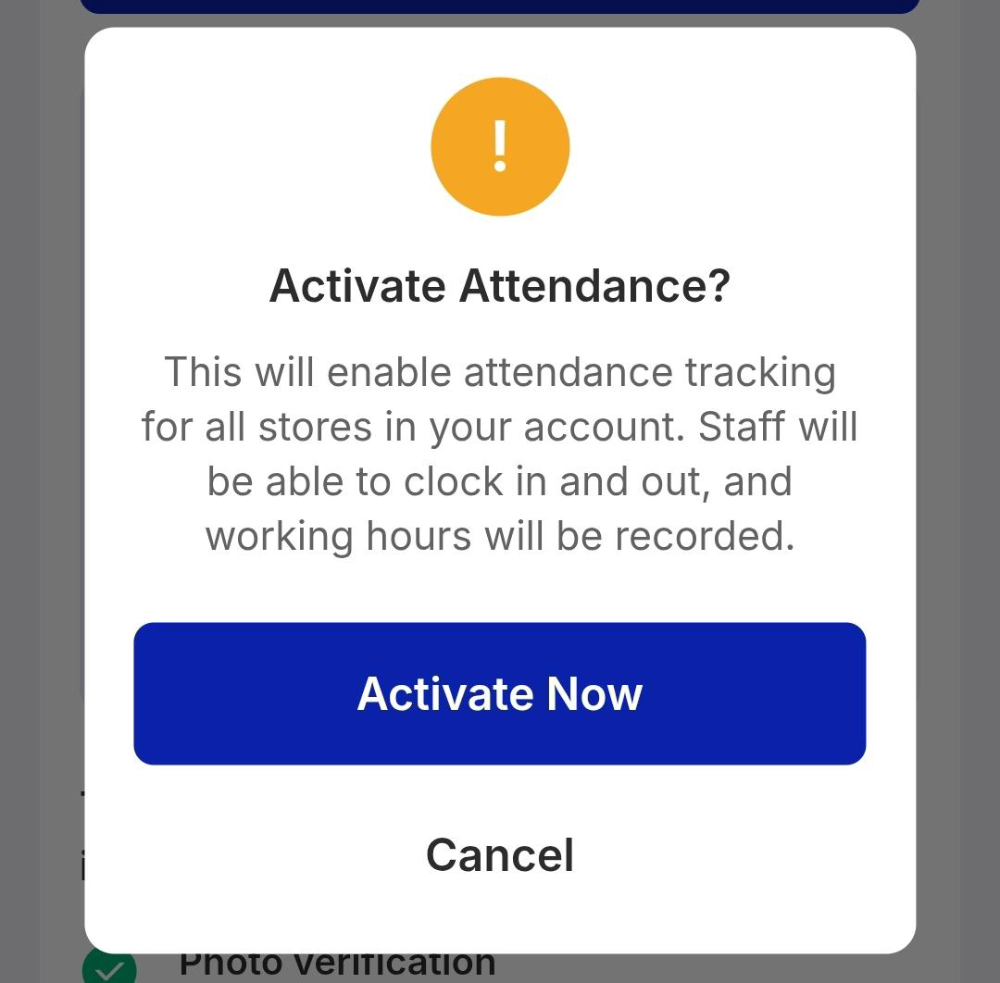
Go to More › Add-ons. Under Team Management, open Attendance and tap the blue Activate button. Confirm with Activate Now — the notice explains it enables clock-in for every store on your account. A green Add-on activated successfully toast means the ledger is live.
Clock in with a selfie
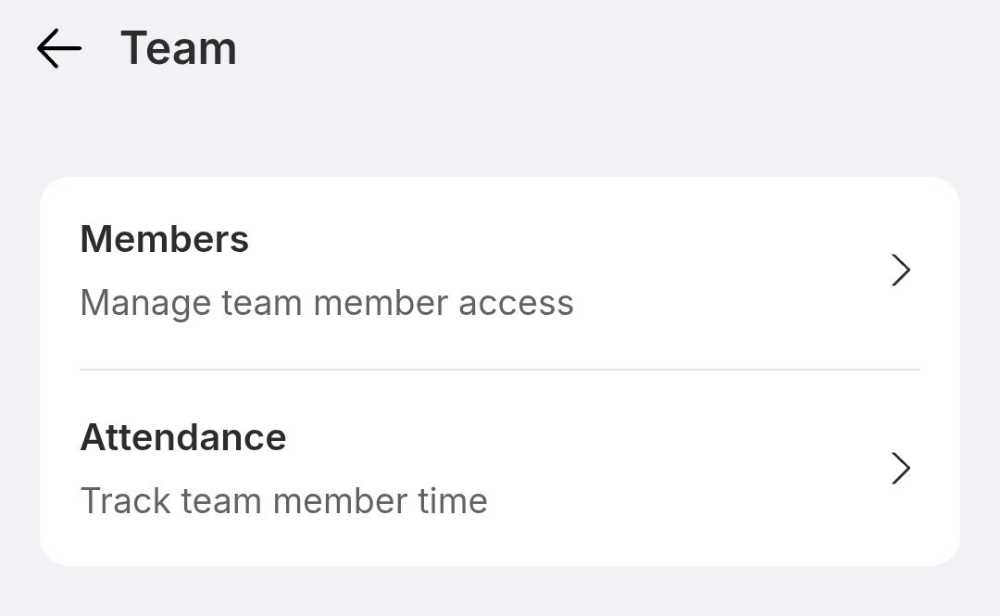
This is the staff routine. Open More › Team › Attendance. On the Clock In / Out keypad, tap Select user and pick your name, key in your 6-digit PIN, then tap Clock In. The camera opens — allow access with While using the app — line your face up, take the photo and tap OK. A green You’re clocked in! banner confirms it, with the time. Clocking out at the end of the shift works exactly the same way.
Check the record
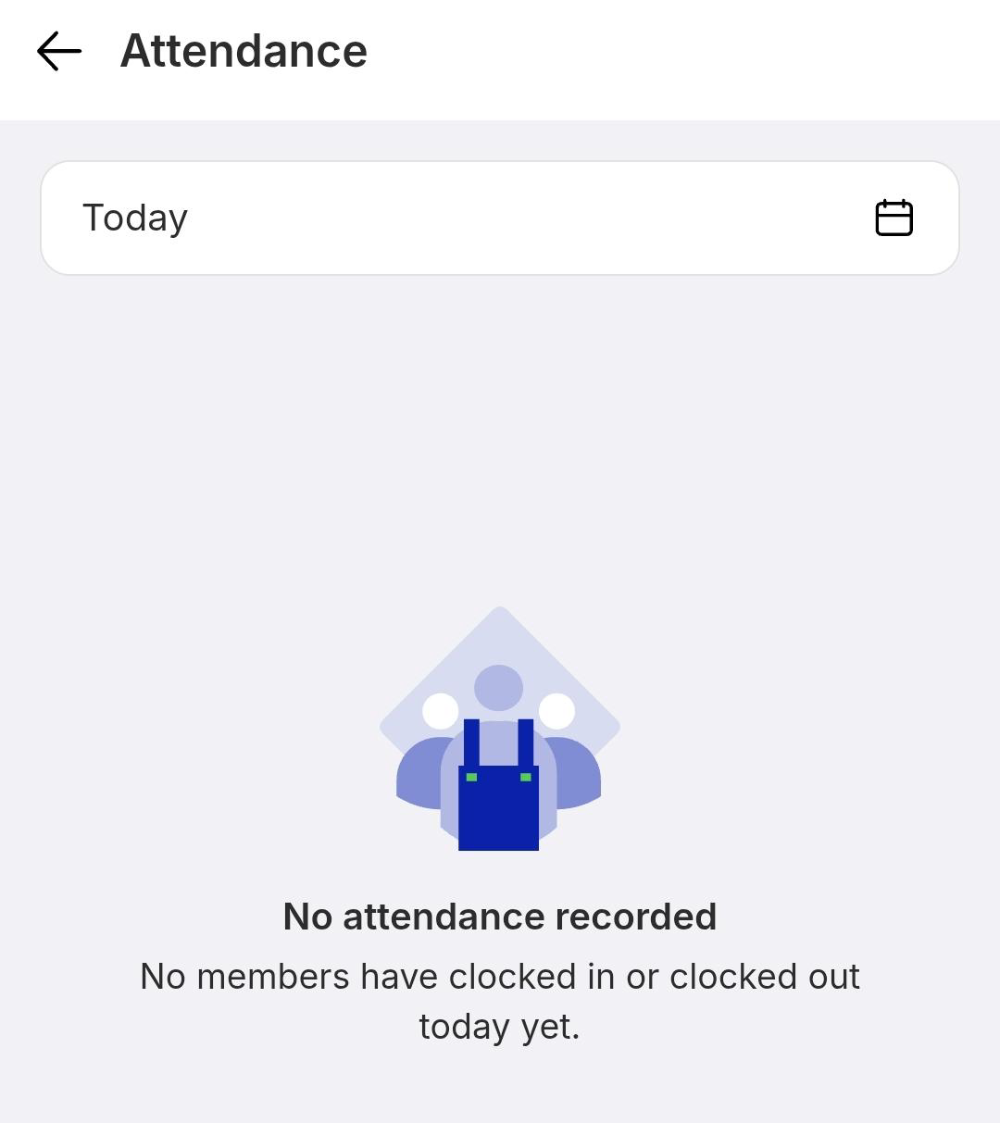
The Attendance screen lists who clocked in and out, with times, for whichever day you pick at the top. Before anyone clocks in it reads No attendance recorded. Totals, average hours and manpower cost roll up into the Attendance tab of the Insights Centre.
IF IT LOOKS WRONG
There is no Attendance option
The add-on is not activated yet. A manager has to switch it on in Add-ons before staff see the clock-in screen.
The camera never opens
Camera access was declined. Allow it for EPOS360 in the device settings — the photo step cannot be skipped.
A name is missing from Select user
That person has no profile in Team, or is assigned to a different store. Check their member record.
