
Apply to accept card payments
Accept Visa and Mastercard online through your store, and in person through a BlueTap card reader. The application runs in the Touch ’n Go mini app and needs documents ready before you start.
WHO THIS IS FOR
SSM-registered businesses
with a Touch ’n Go merchant account linked to EPOS360.
Anyone wanting card at the counter
— insert or tap on a BlueTap reader — or card checkout on their online store.
BEFORE YOU BEGIN
Apply through the Touch ’n Go mini app. Open the EPOS360 mini app inside TNG eWallet — that is the recommended route.
Your bank account name must match the SSM company name. A mismatch is the most common reason an application stalls.
Take the shop photos in advance. Eight in total, and two of them are compulsory: the cashier counter inside, and the signboard outside.
THE STEPS
Pick the device in front of you.
Check you are eligible
Your EPOS360 account must have been created with the merchant’s SSM details. Open the EPOS360 mini app from Business Tools in TNG eWallet — if the account qualifies, a card payment banner appears at the top. No banner means the account is not registered with SSM information yet.
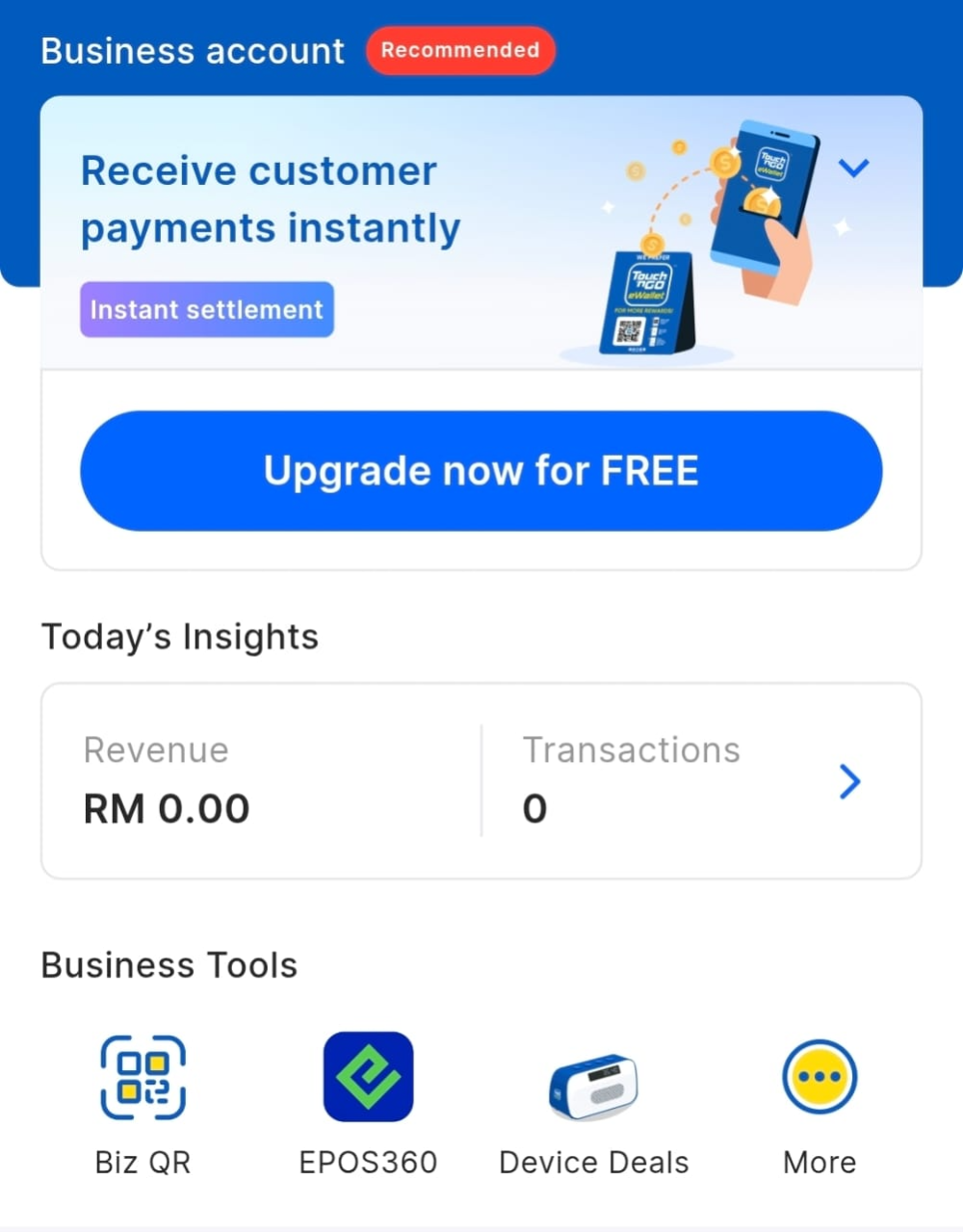
Gather the documents
Have all of these as soft copies on the phone before you open the form. Missing one means starting again later.
Submit the application
Tap the banner, review the payment methods on offer and tick the ones you want, then tap Begin Application and work down the form.
IF IT LOOKS WRONG
No application banner
The account is not registered with SSM details, or the upgrade has not carried through. Contact the TNG Helpdesk to have it updated.
Bank details rejected
The account name has to match the company name on the SSM record exactly. A personal account will not pass.
Photos rejected
Four interior and four exterior are expected, and the cashier counter and signboard shots must both be clear.
