
Register your members
Show customers a QR code and let them fill in their own details, or add them at the counter while they wait. Either way they land in the same member list.
WHO THIS IS FOR
Cashiers at the counter
signing customers up while the order is being paid.
Owners printing the QR
for table tents, receipts or social posts.
BEFORE YOU BEGIN
Always capture the birthday. The birthday voucher can only fire for members whose date you have.
The mobile number is the member’s identity. Pick the right region prefix before typing the digits.
THE STEPS
Pick the device in front of you.
Open Memberships & Loyalty
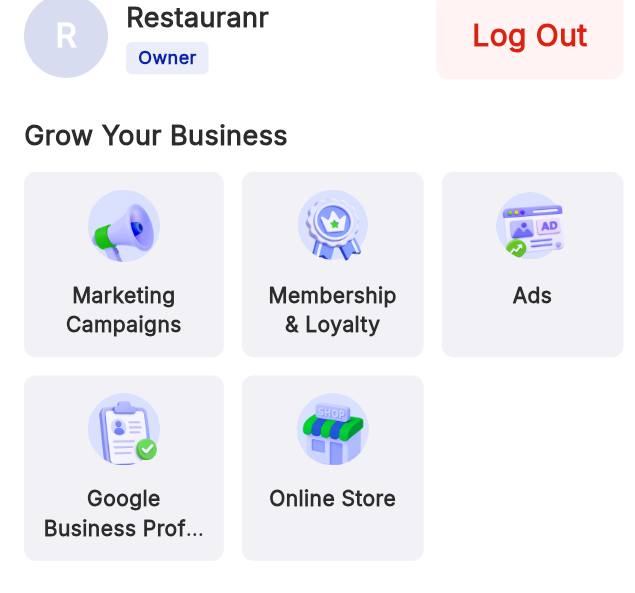
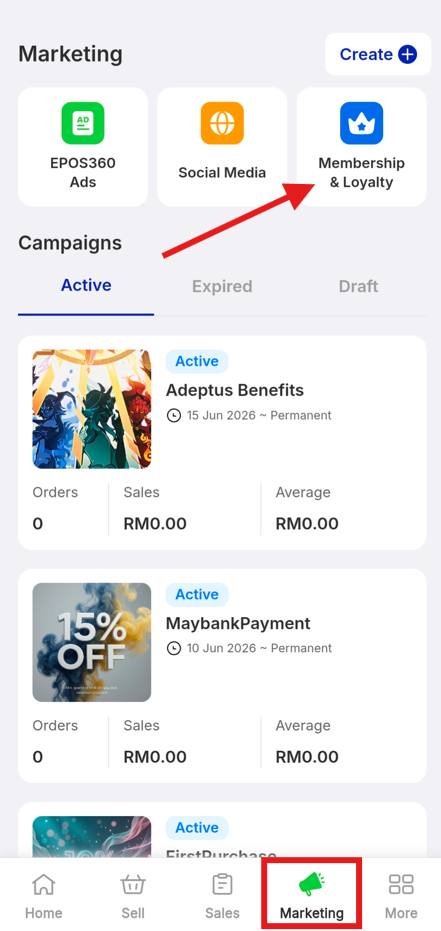
On tablet, tap the four-square icon on the dashboard and choose Membership & Loyalty. On phone, tap the Marketing tab in the bottom bar, then the orange Membership & Loyalty button in the tools grid.
Share the sign-up QR
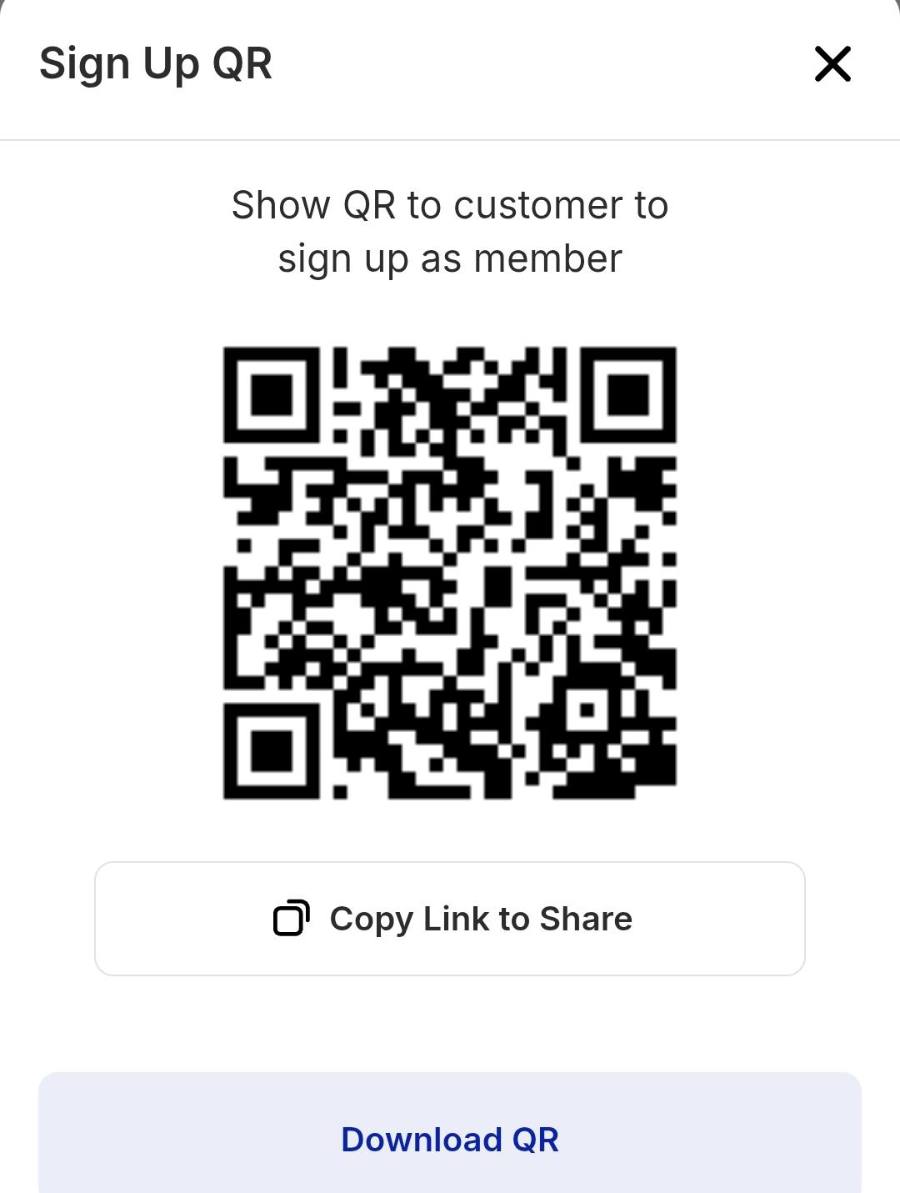
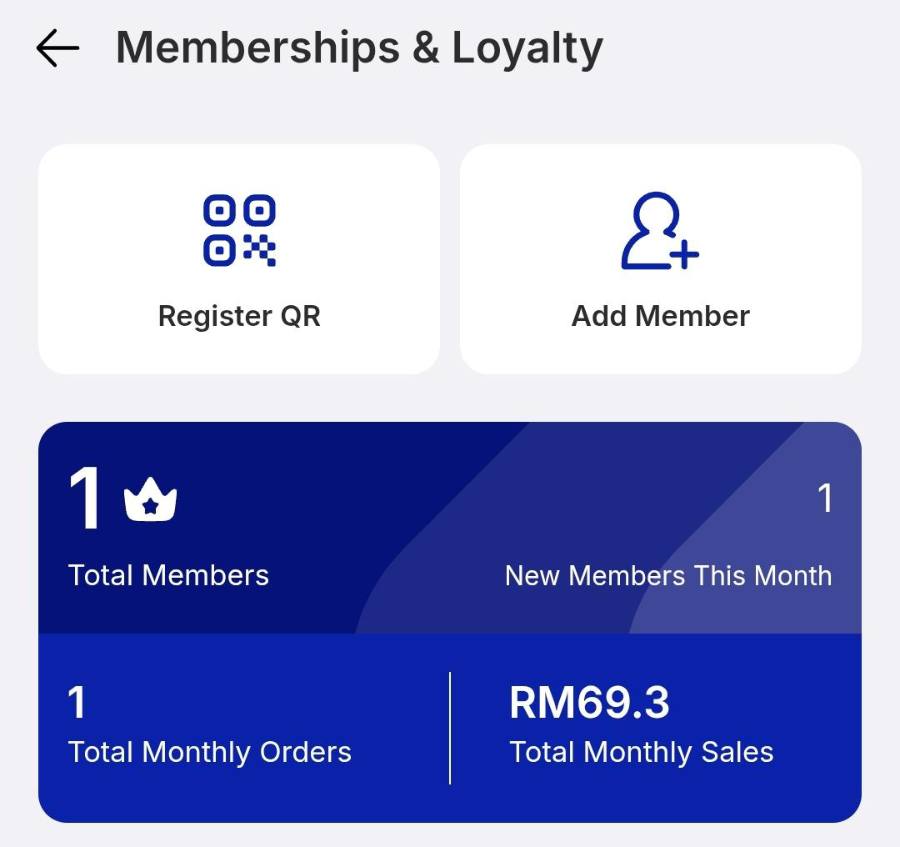
Tap Register QR. A Sign Up QR card slides up — hold it out for customers to scan and fill in their own profile. Copy Link to Share puts it in a message or a post; Download QR gives you a file to print for table tents and counter cards.
Add a member by hand
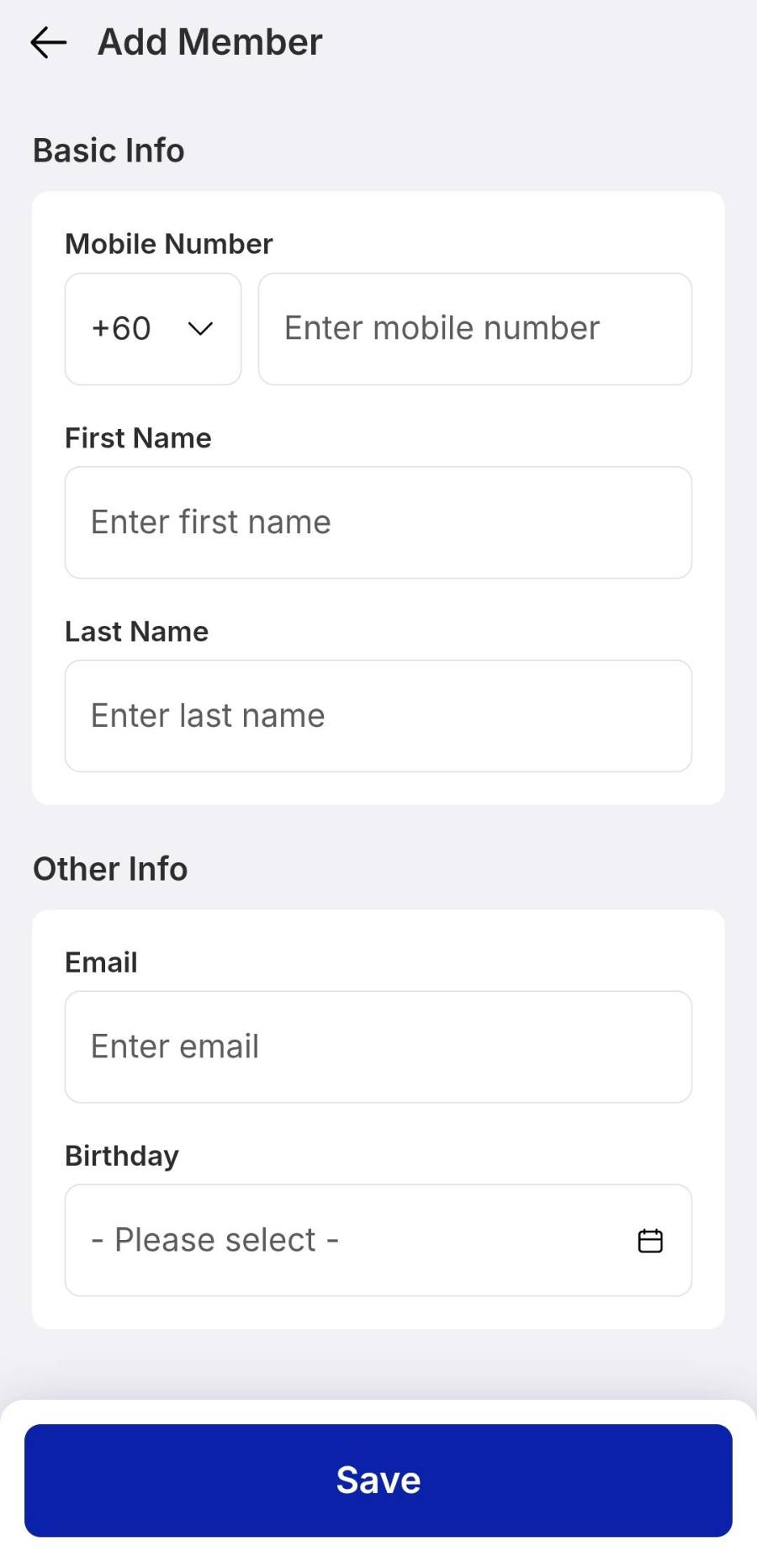
Tap Add Member at the top right, fill in the profile, then Save.
IF IT LOOKS WRONG
The number is already registered
That customer is already a member. Look them up under My Members instead of adding them again.
The QR does not open anything
Re-open Register QR and use Copy Link to Share to test the link yourself before printing it.
No birthday vouchers going out
Members added without a birthday cannot receive one. Edit the profile and set the date.
