
Switch on automated vouchers
Three coupons come built in: one on sign-up, one on a birthday, one right after a first order. Set them once and they keep running.
WHO THIS IS FOR
Anyone who wants repeat visits
without remembering to send anything.
Stores already registering members
— the vouchers need a member list to send to.
BEFORE YOU BEGIN
Nothing sends until you tap Publish. Save as Draft keeps a voucher configured but dormant.
Give each one an expiry. Usage Validity in days is what stops old coupons turning up months later.
THE STEPS
Pick the device in front of you.
Welcome voucher
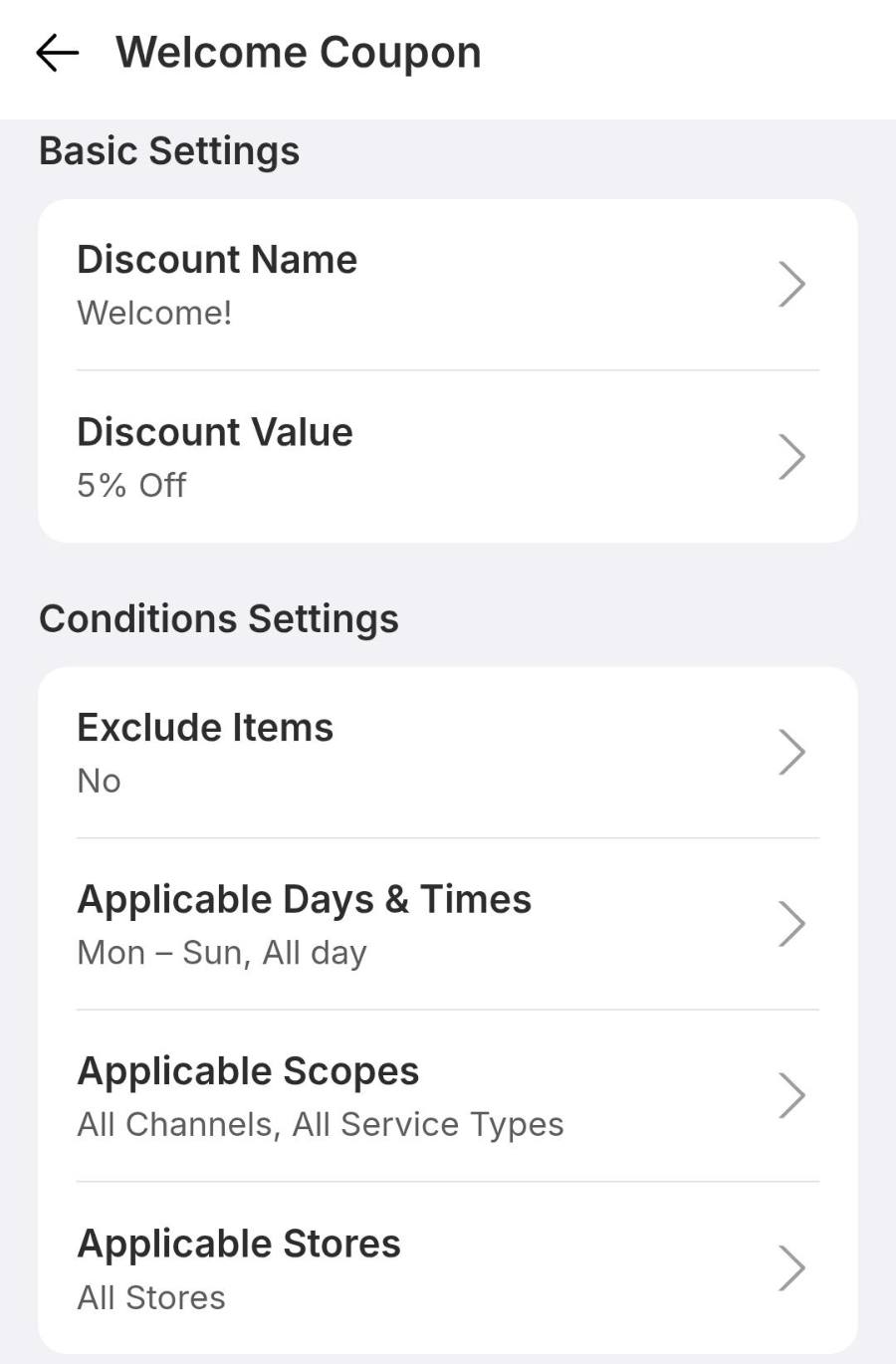
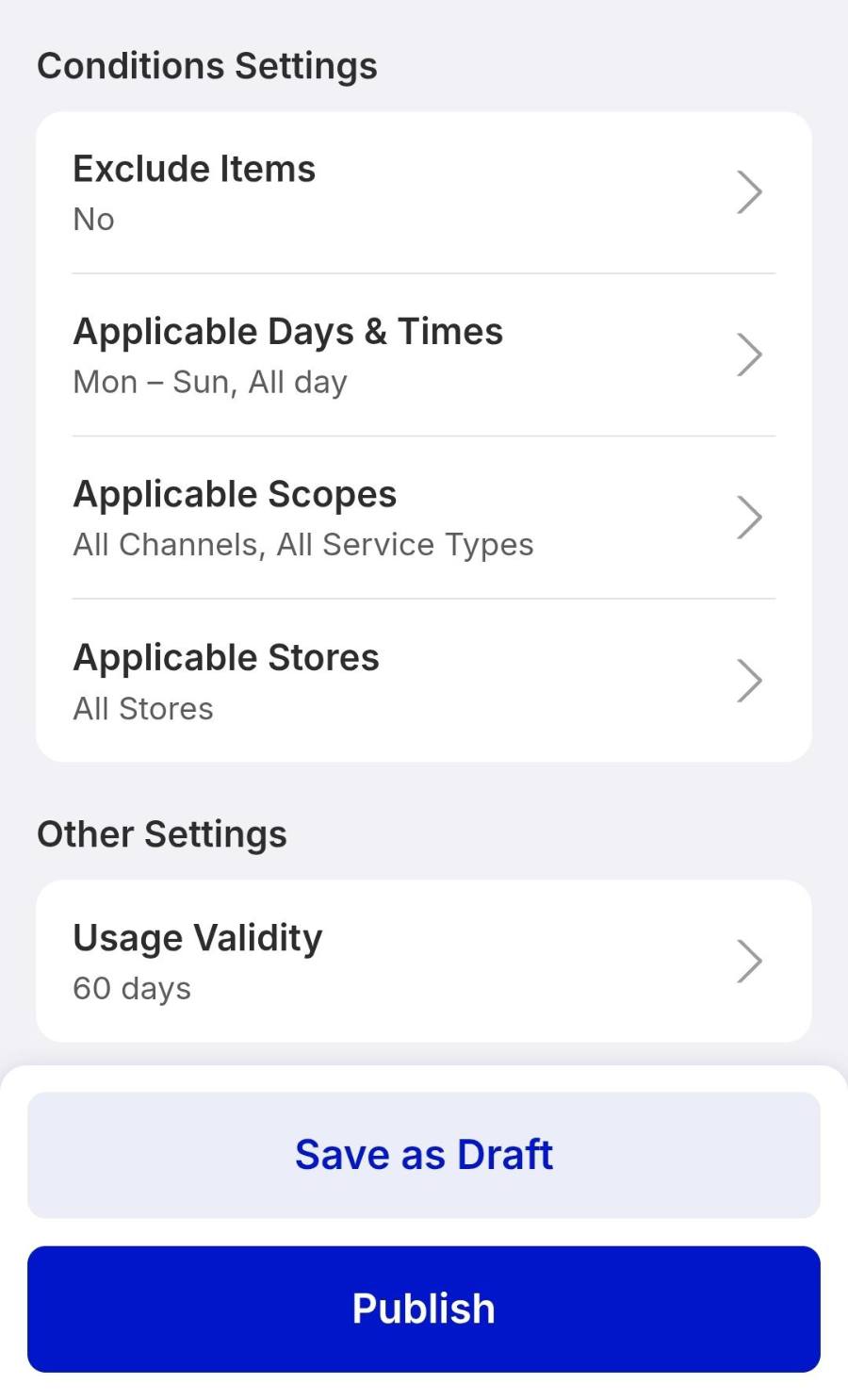
Lands in a customer’s profile the moment they register. Tap Welcome Voucher, set a Discount Name customers will read, for example Welcome!, then a Discount Value as a percentage or a fixed amount. Scroll to Usage Validity and give it a lifespan, for example 60 days, then tap Publish.
Birthday voucher
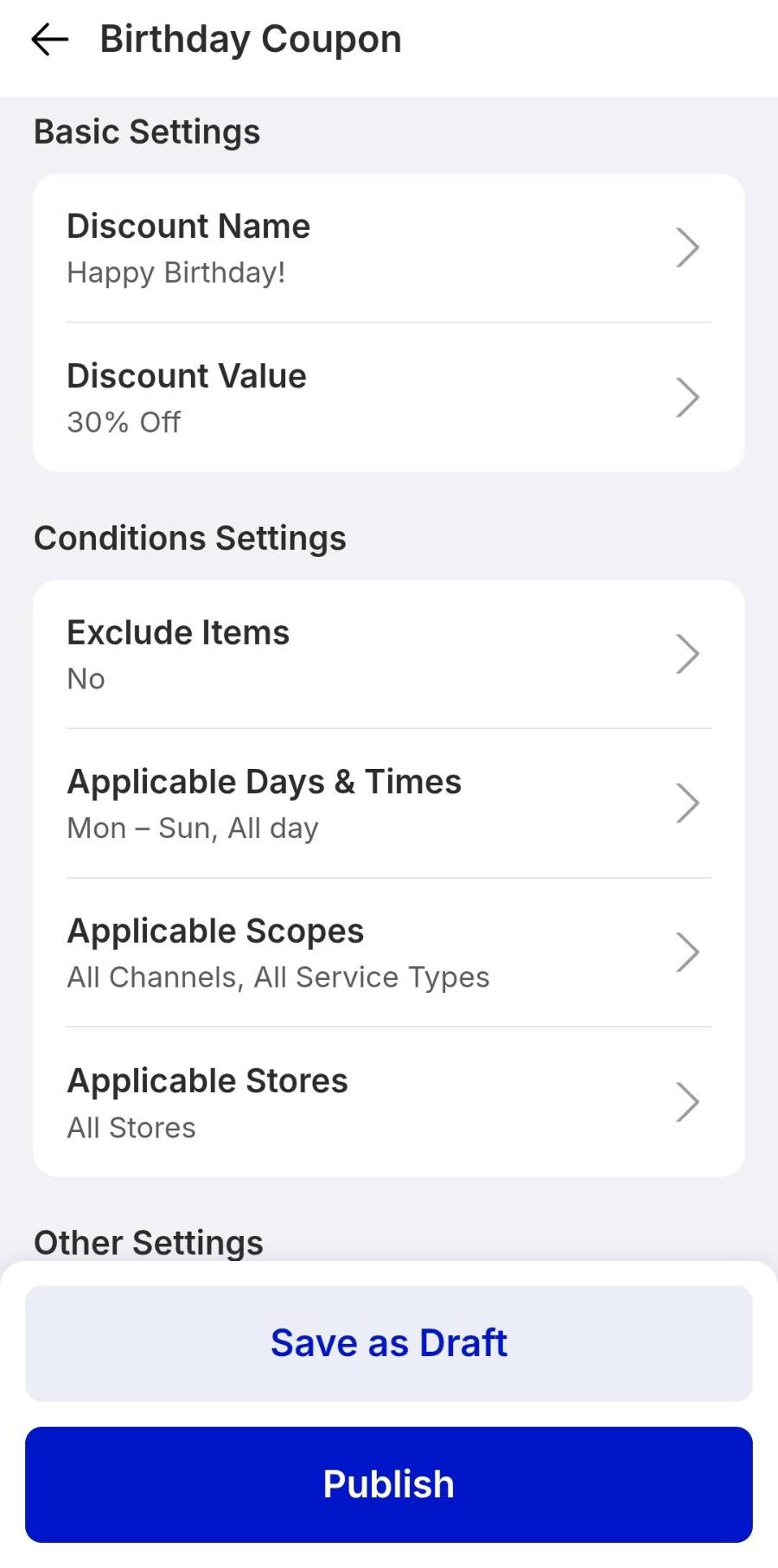
Drops into the member’s profile on their birthday, every year, as long as their date is on file. Select Birthday Voucher, set the name, for example Happy Birthday!, and the discount value, then tap Publish.
Next order voucher
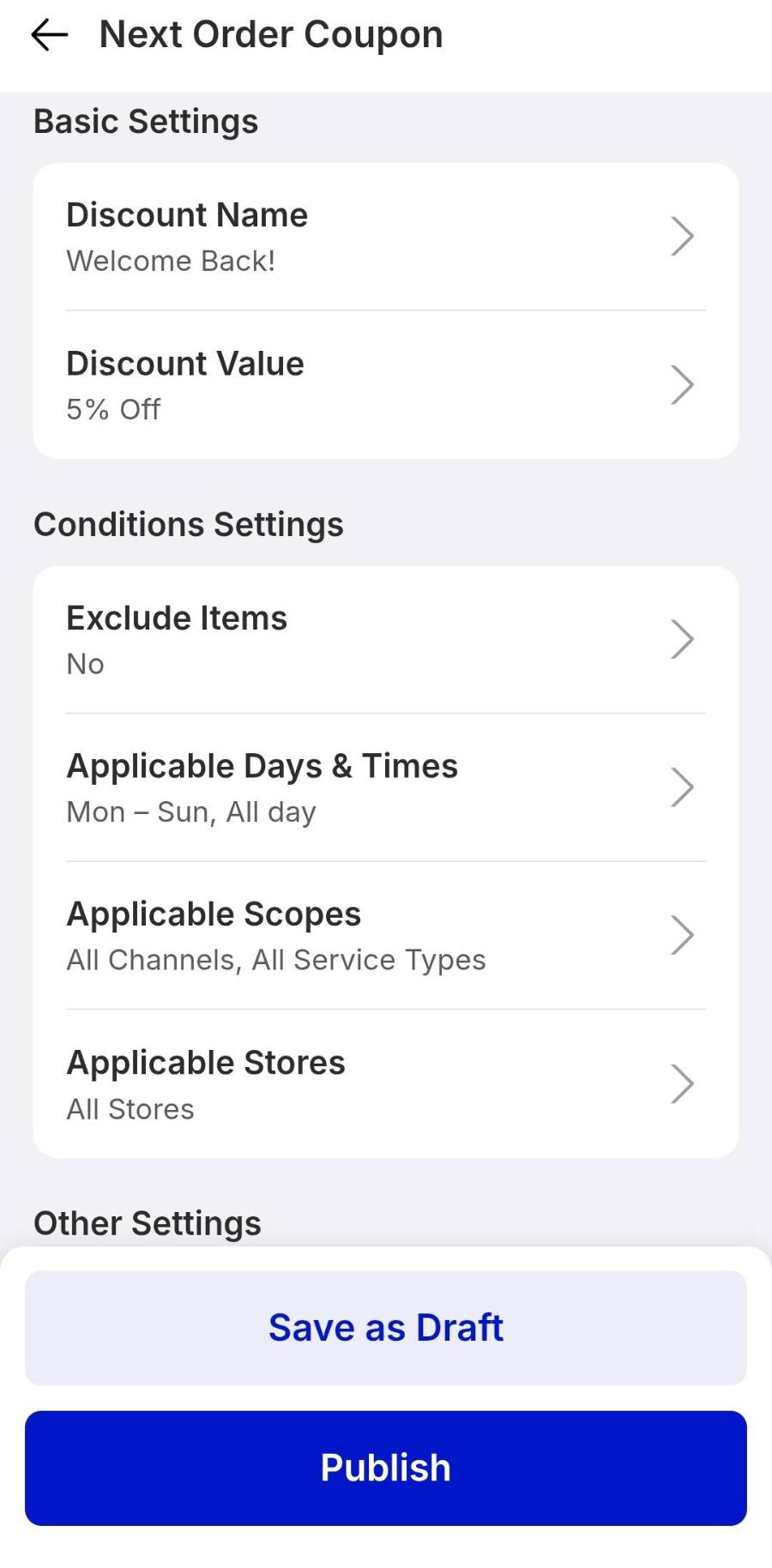
Sends straight after a member’s first checkout to pull them back for a second visit. Select Next Order Voucher, set the name and value, for example Welcome Back! at 5% off. Check the Automation Messaging preview at the bottom — that is the wording that reaches customers over WhatsApp. Tap Publish.
IF IT LOOKS WRONG
No voucher after sign-up
The welcome voucher is probably still a draft. Reopen it and tap Publish.
Birthday vouchers skip some members
Only profiles with a birthday on file qualify. Ask staff to capture it at sign-up.
Coupons expire too quickly
Usage Validity is set in days. Raise it, then publish the voucher again.
