
Pair a Bluetooth printer
Pair a thermal printer over Bluetooth and tell EPOS360 what it should print: customer receipts, kitchen tickets, or the end-of-day report.
WHO THIS IS FOR
Whoever sets up the counter
on install day, or when a new printer arrives.
Kitchens running a second printer
for order tickets, separate from the receipt printer at the till.
BEFORE YOU BEGIN
Paper roll in, printer powered. Bluetooth setup currently supports 58mm rolls; Wi-Fi printers are added by keying in an IP and port.
The drawer plugs into the printer, not the tablet. Its RJ11/RJ12 cable goes into the DK (drawer kick) port on the back of the receipt printer.
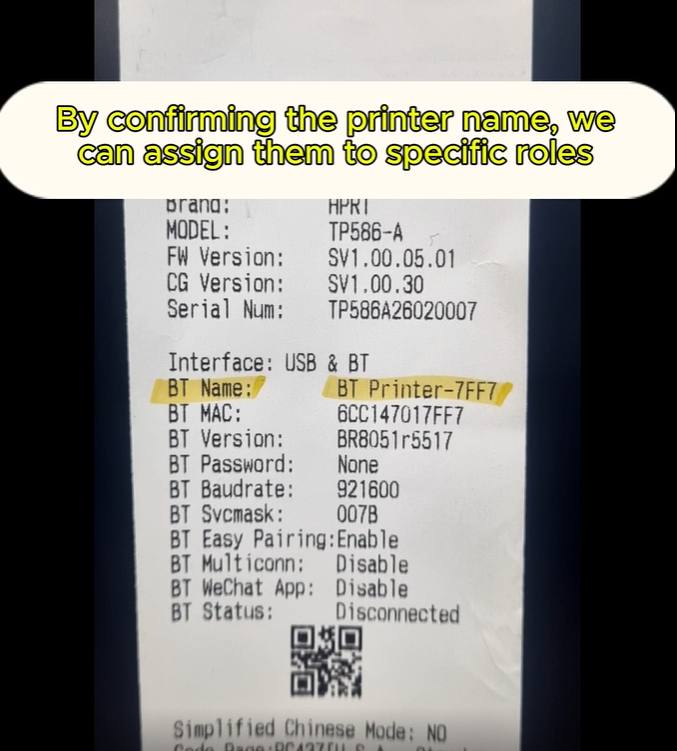
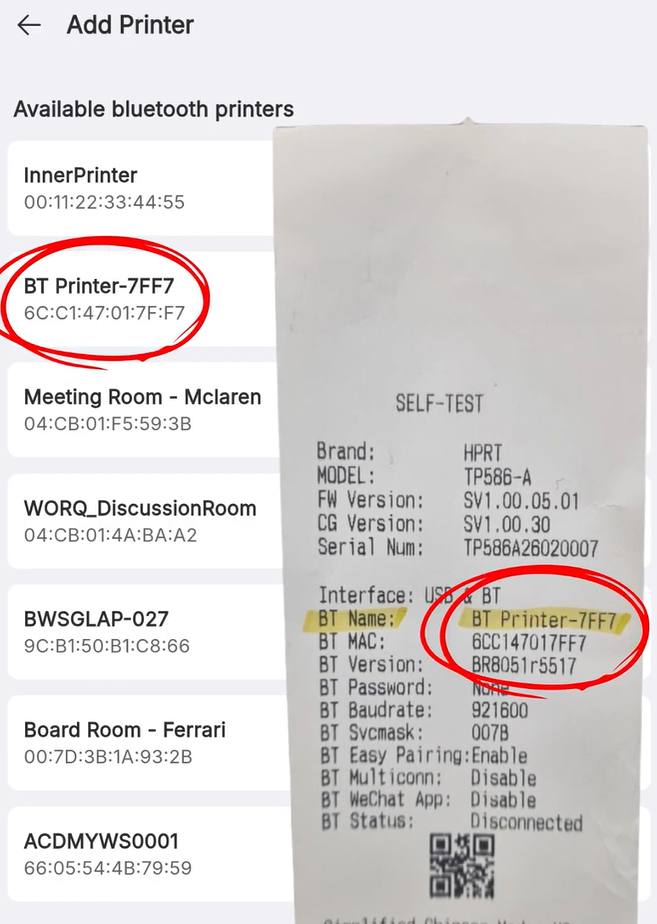
Note the printer’s Bluetooth name first. Several devices show up in the list, and only the self-test slip tells you which one is yours.
THE STEPS
Pick the device in front of you.
Find the printer name
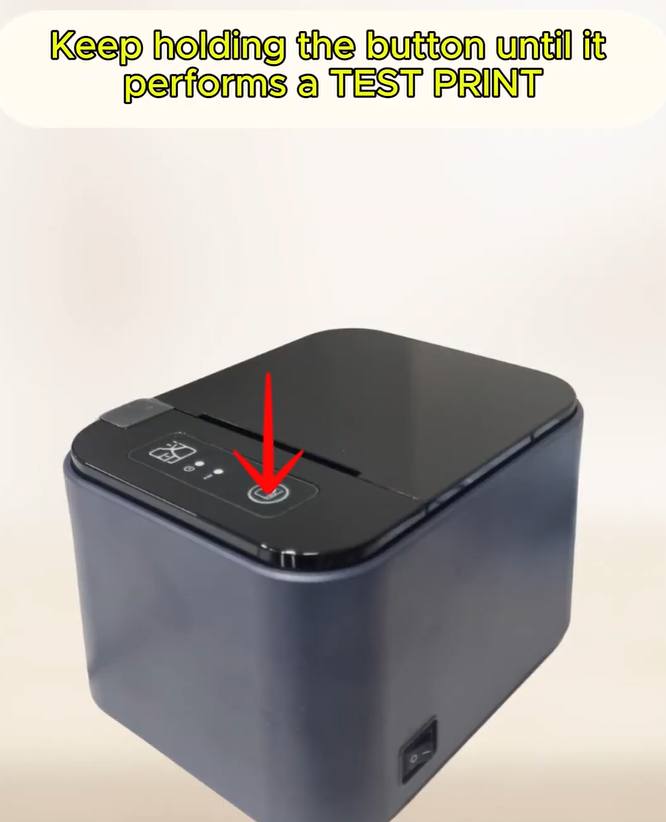
With the printer off, hold down the Feed button and flip the power switch on. Keep holding until it prints a SELF-TEST slip. On that slip, read the BT Name row — for example BT Printer-7FF7. That is the name to look for in the app.
Connect the printer
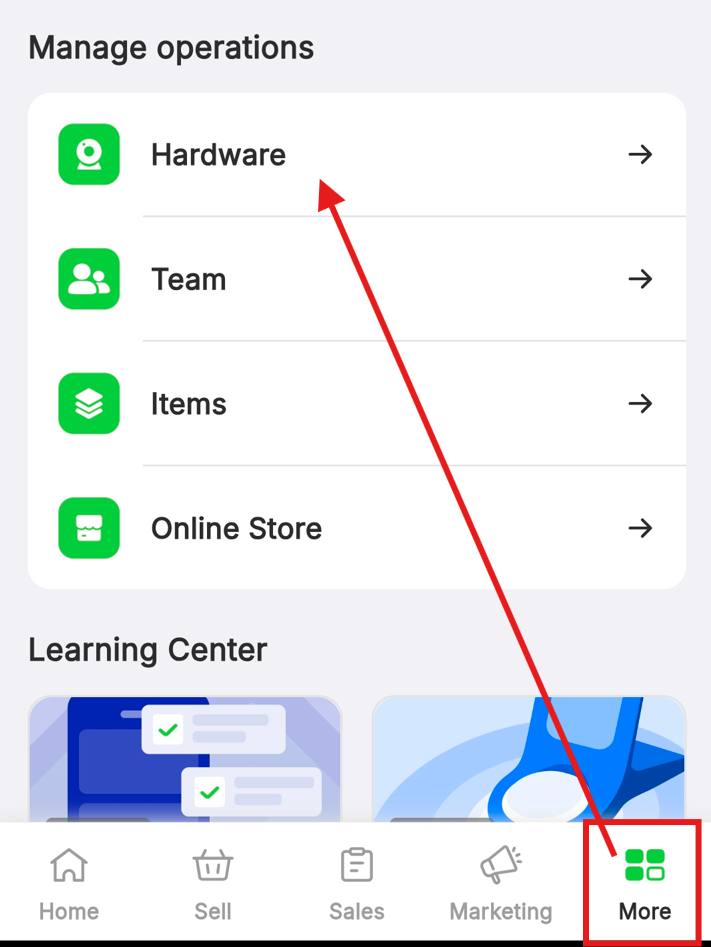
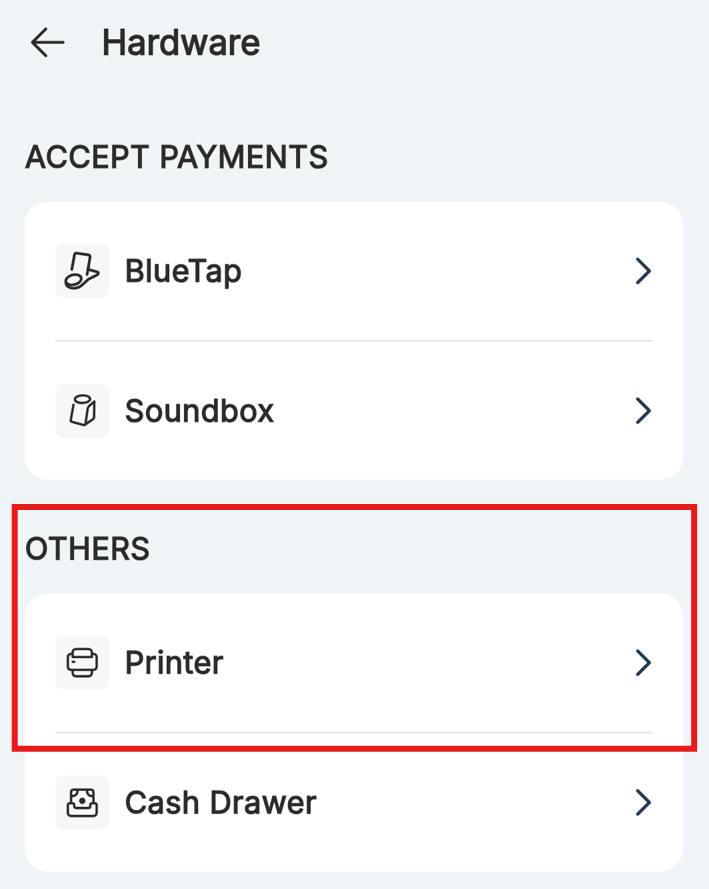
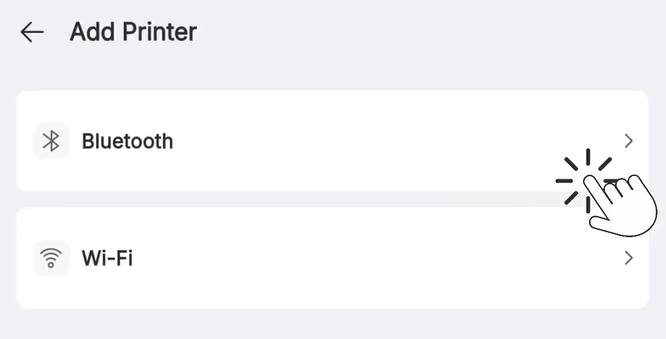
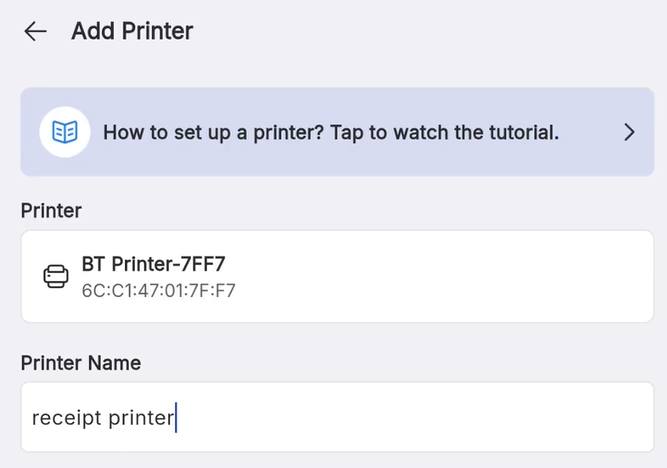
Tap More, then Hardware under Manage Operations. Open Printer, tap Add Printer and choose Bluetooth. In Available bluetooth printers, select the name from your slip and tap Connect. A green Connected successfully badge appears.
Set the printer roles
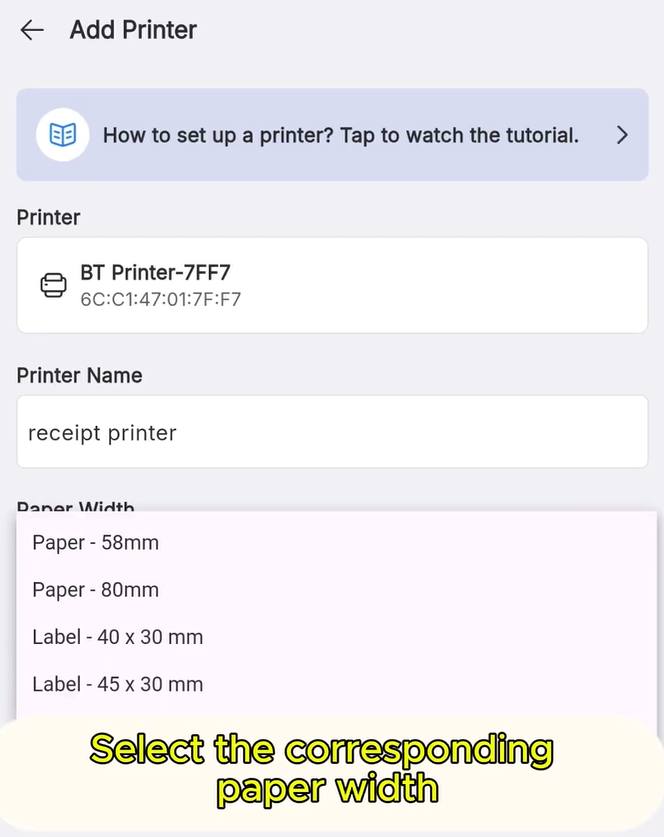
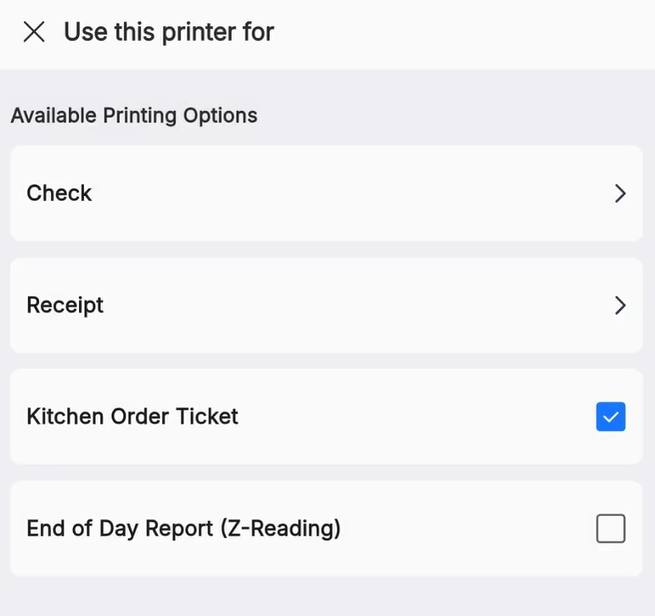
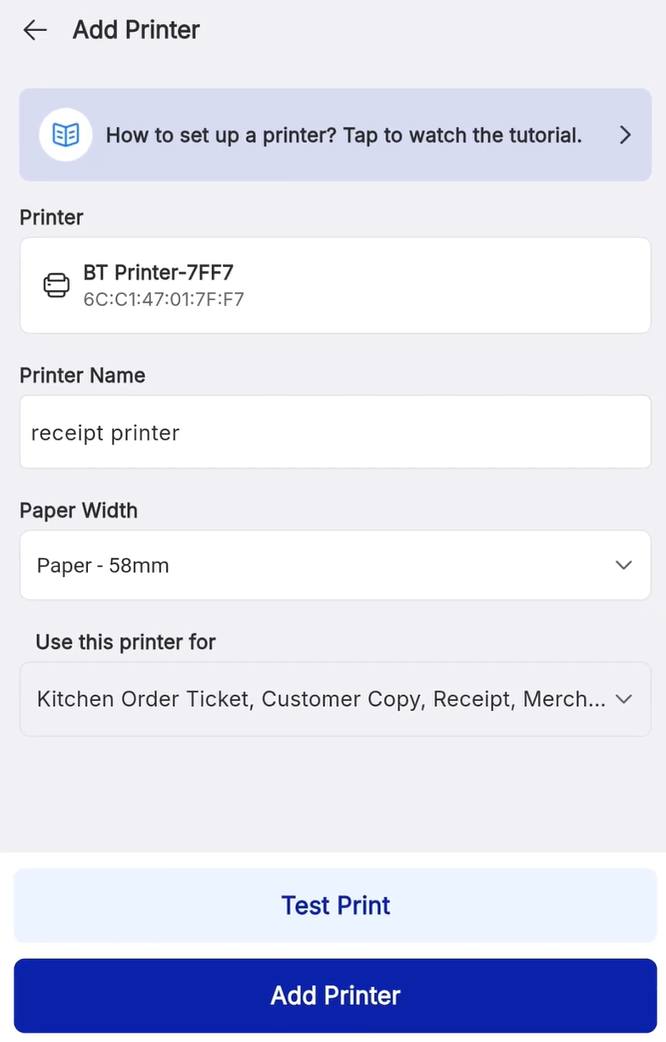
Now tell EPOS what this printer is for, then save it.
IF IT LOOKS WRONG
The printer is not in the list
Confirm the name on the self-test slip and that the printer is on. Several nearby devices appear, so match the BT Name exactly.
It connects but prints nothing
Check the roles under Use this printer for. A printer with no role assigned stays silent.
Receipts print at the wrong width
Paper Width must match your roll. Reopen the printer and switch between 58mm and 80mm.
