
Connect a cash drawer
Connect the drawer through your receipt printer, or straight into the POS if it has a built-in printer. Cable it up, pick the matching method in EPOS360, and it kicks open on every cash sale.
WHO THIS IS FOR
Whoever sets up the counter
— whether you run an external printer or a POS with one built in.
Cash-heavy counters
that need the drawer to open by itself at the end of a sale.
BEFORE YOU BEGIN
Pair the receipt printer first — if you are using one. The Printer method needs that printer to exist in Hardware already. The Hardware Port method does not.
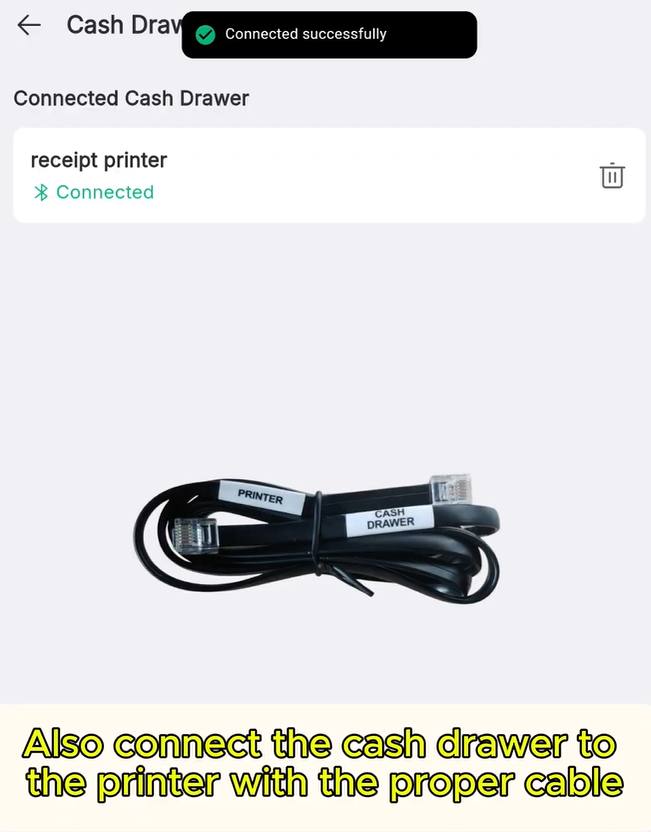
Know where the cable goes. Into the DK port on an external printer, or into the RJ11/RJ12 port on the POS if your POS has a built-in printer.
THE STEPS
Pick the device in front of you.
Link the cash drawer
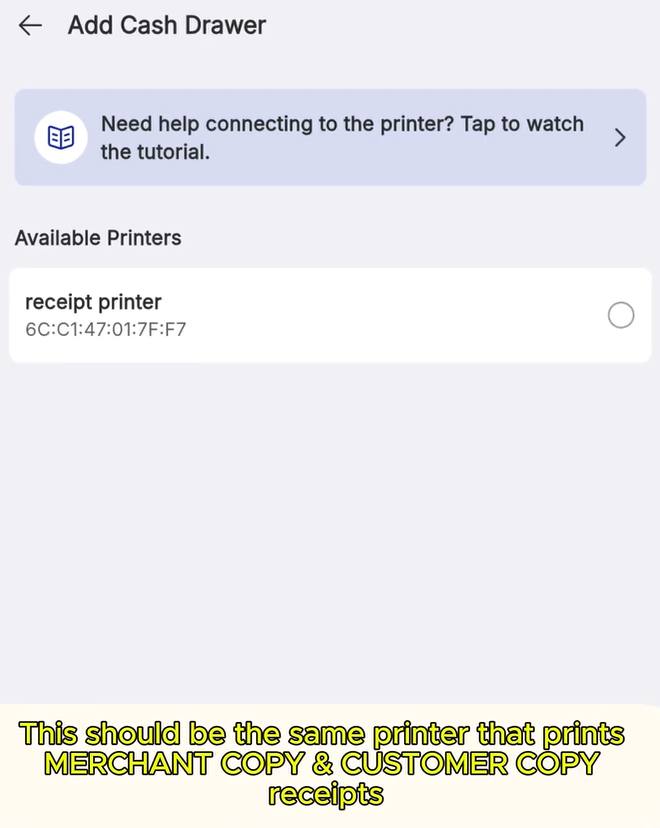
Back in Hardware, open Cash Drawer and tap Add Cash Drawer. Under Select Connection Method you get two choices — Printer or Hardware Port. Which one you use depends on the equipment in front of you; see below. Pick it, tap Connect, and once you see Connected successfully the drawer kicks open on every cash sale.
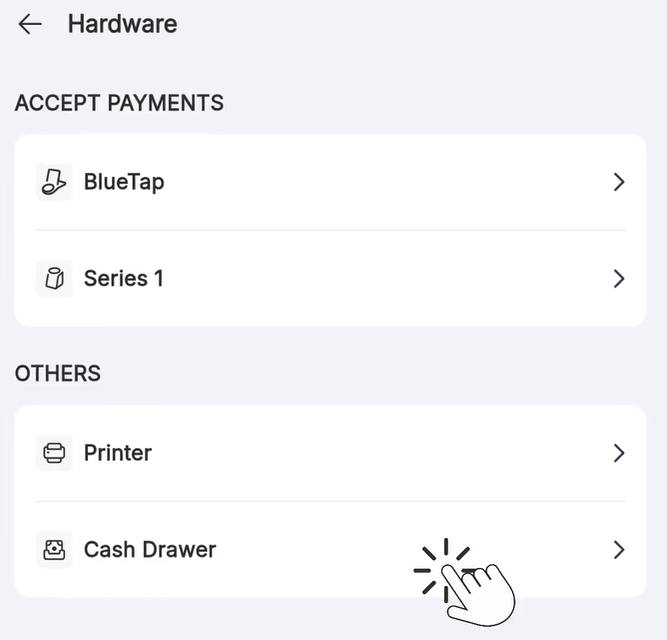
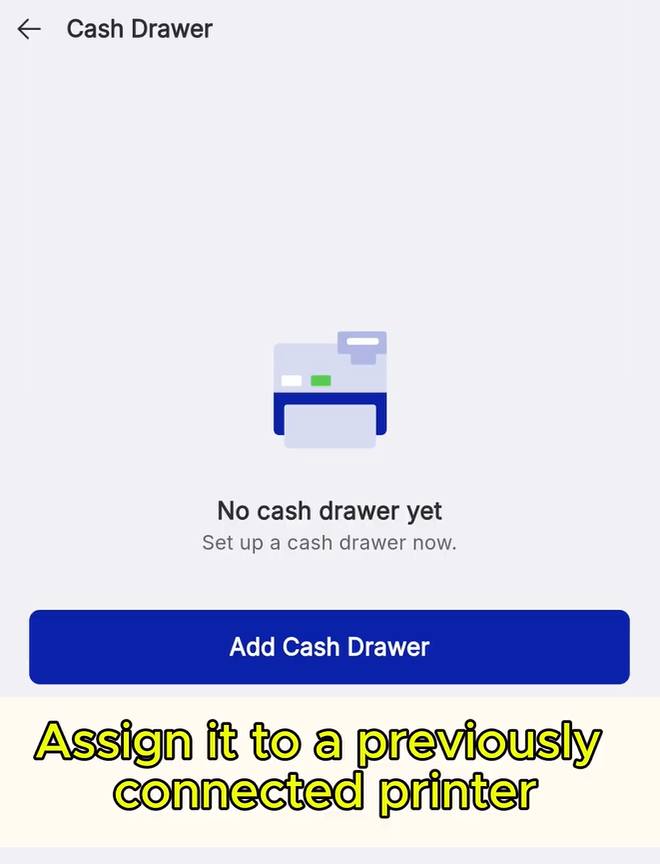
Which connection method to use
Three situations, and the method each one calls for. Printer means the drawer cable runs into an external printer; Hardware Port means it runs straight into the POS.
Your POS device has no RJ11/RJ12 plug, or you would simply rather not run a cable to it. Plug the drawer into the DK port on the back of your external receipt printer, then choose Printer in the app and pick that printer. Make it the printer that prints your Merchant and Customer copies, so the drawer kicks at the right moment.
Your POS device has an internal printer, so there is no external printer to hang the drawer off. Plug the RJ11/RJ12 cable into the port on the back of the POS itself, then choose Hardware Port in the app.
Your POS supports RJ11/RJ12 and you run an external printer. Both methods work, so it comes down to preference and how you want the cables to sit at the counter.
Does the drawer open on a cash sale?
IF IT LOOKS WRONG
The drawer never opens
Check the cable is in the DK port of the printer you linked, and that this printer is the one printing Receipt copies.
It opens only sometimes
A drawer linked to a kitchen printer only kicks when that printer fires. Link it to the receipt printer instead.
No printer to choose from
Nothing is paired yet. Either pair the Bluetooth printer first, or use Hardware Port if the drawer is cabled to the POS.
