
Different selling methods
Three ways to ring up an order: browse the menu by category, key in a custom amount, or type a short code. Pick the one that matches how fast your counter moves.
Rather not read? Skip to the video walkthrough at the bottom of the page.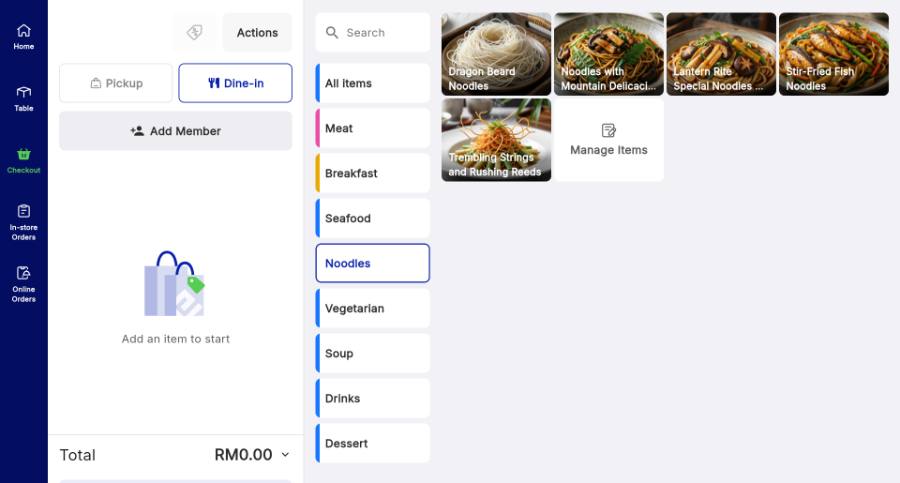
WHO THIS IS FOR
Cashiers and counter staff
taking orders during service, whether from a visual menu or from memory.
Managers deciding a house method
— economy rice and buffet counters usually want Amount; busy stalls want Code.
BEFORE YOU BEGIN
Your menu is in. Category and Code selling both read from items you have already created.
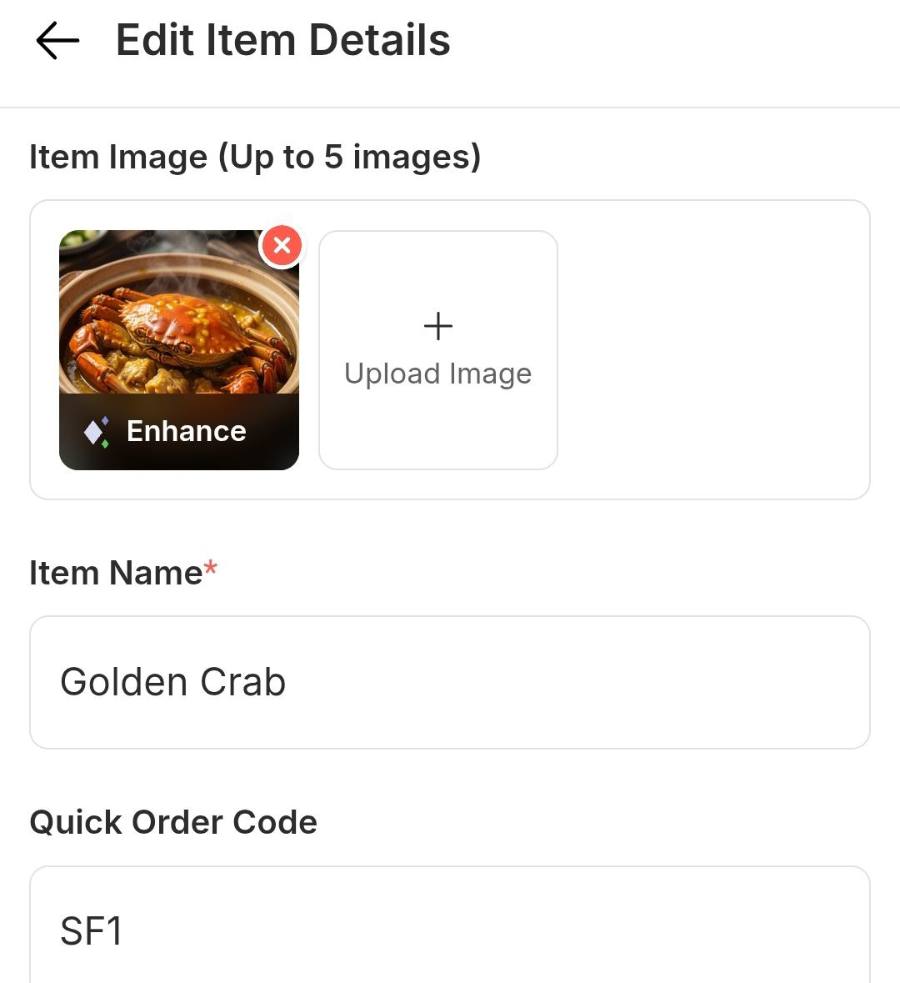
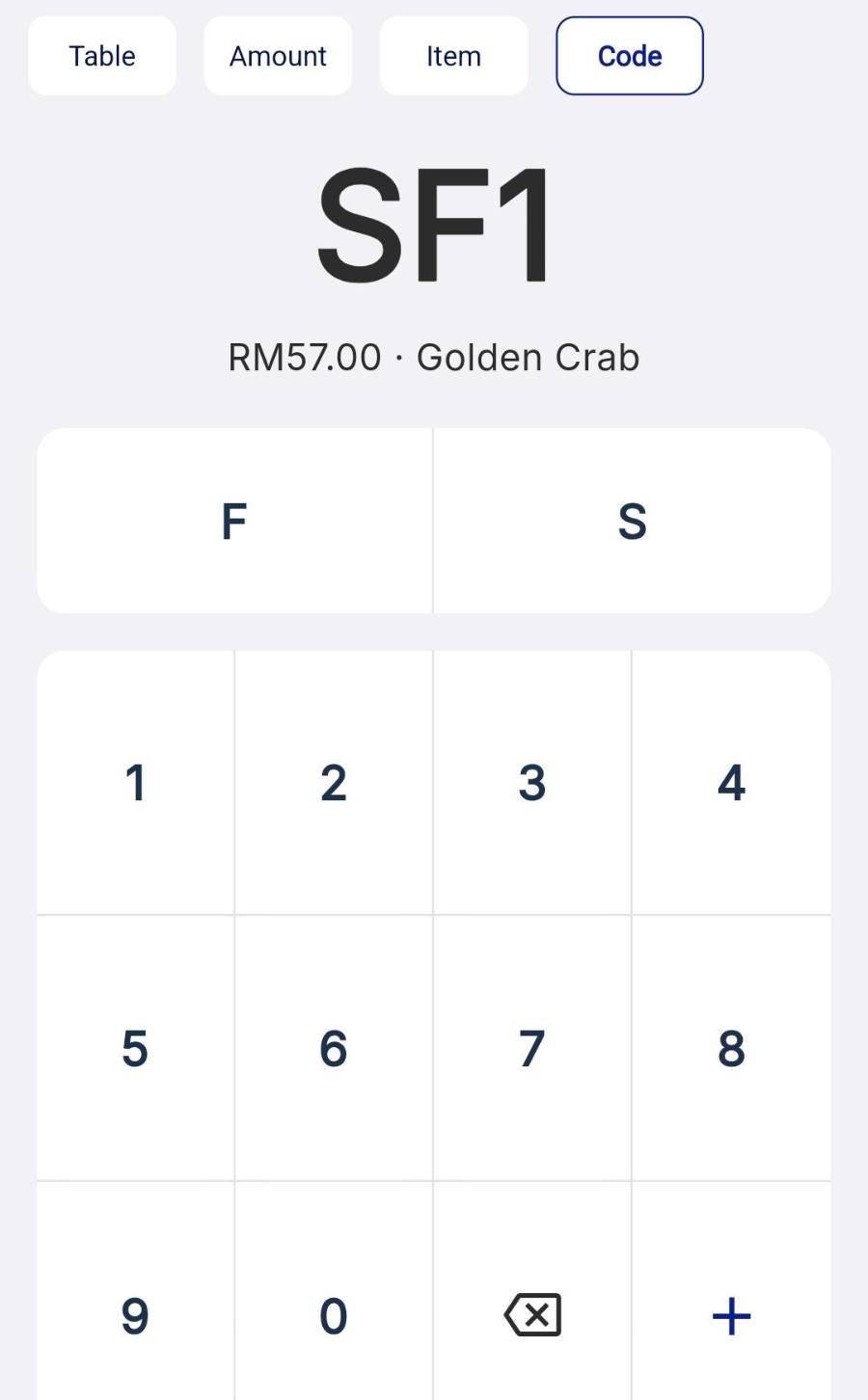
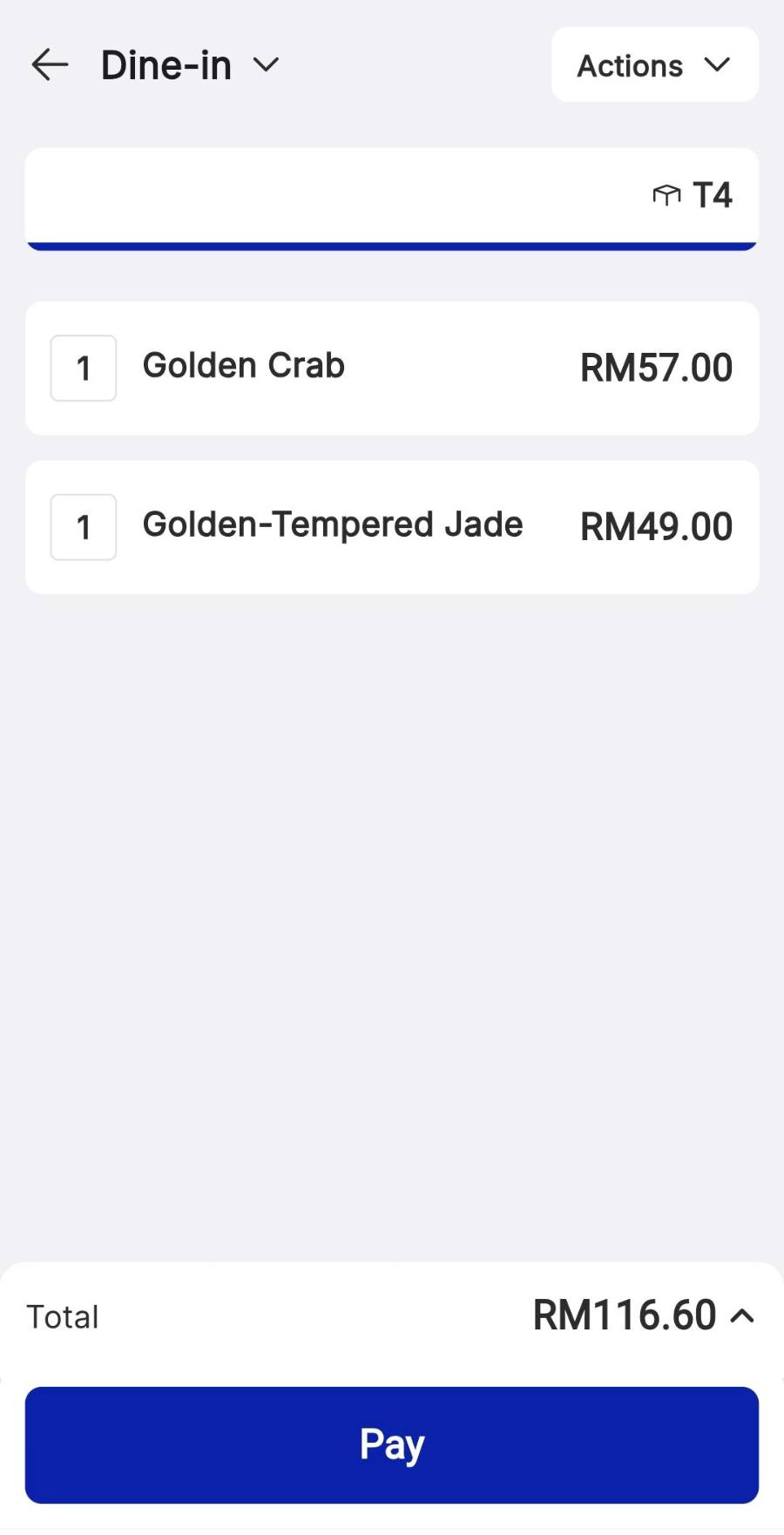
Quick Order Codes are set. Selling by code only works for items with a code saved in Item Details, for example SF1 for Golden Crab.
Dine-in orders go through a table. After Send to Kitchen, the bill is paid from the Table screen or from In-store Orders.
THE STEPS
Pick the device in front of you.
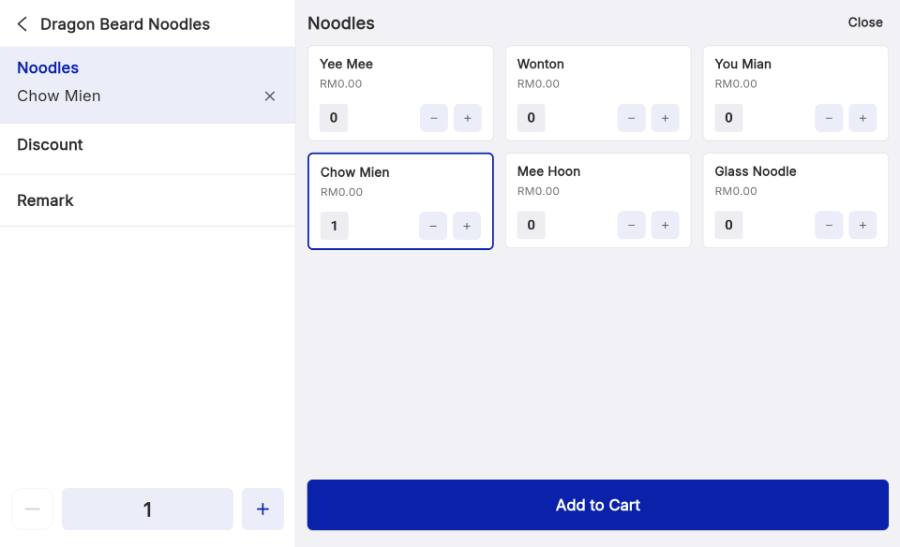
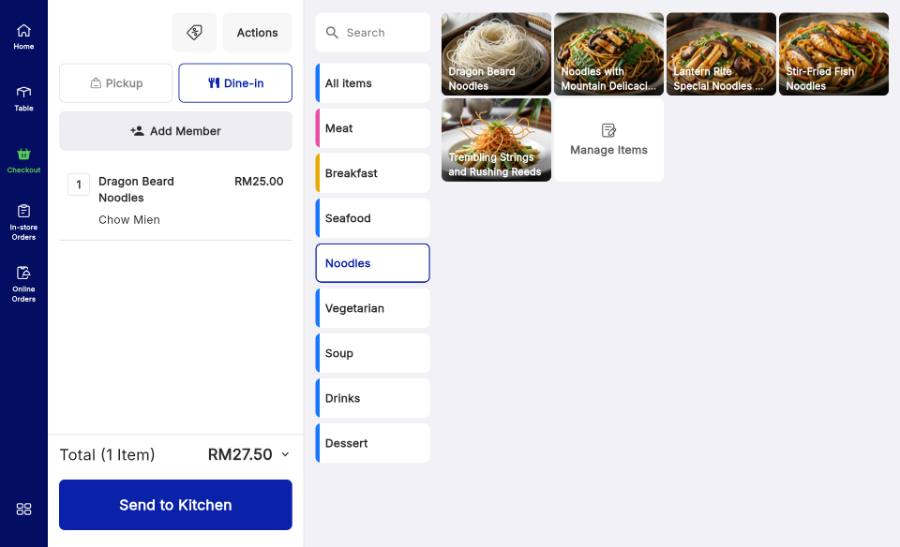
Method 1 — Sell by category
Best when your menu is neatly arranged into categories that staff can find at a glance.
Method 2 — Sell by product name or ID
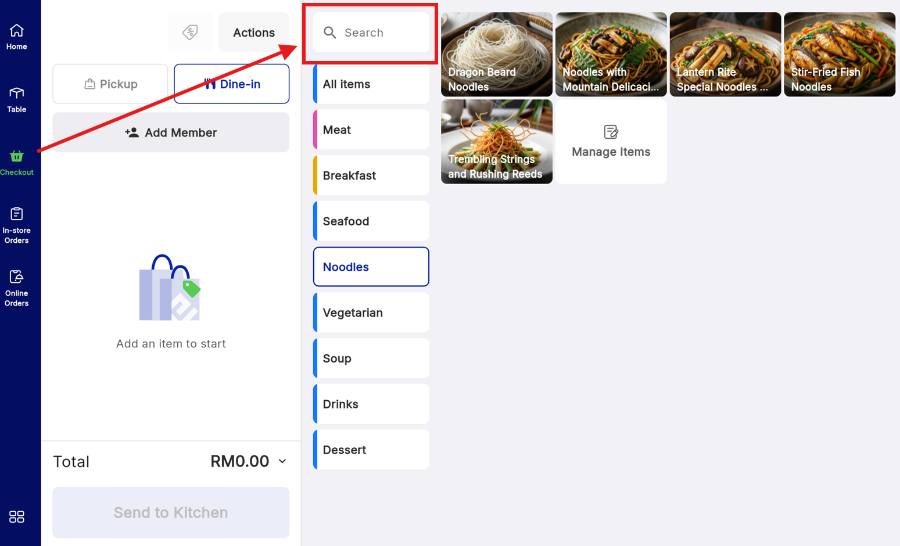
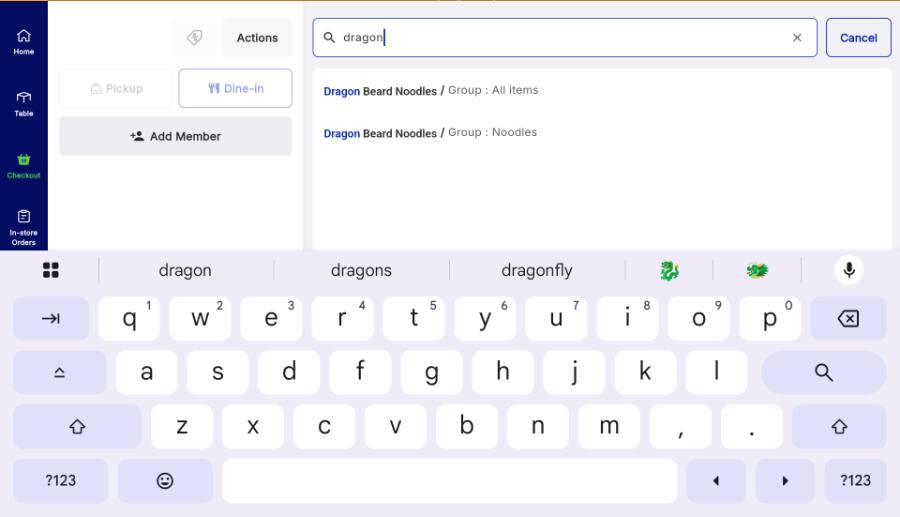
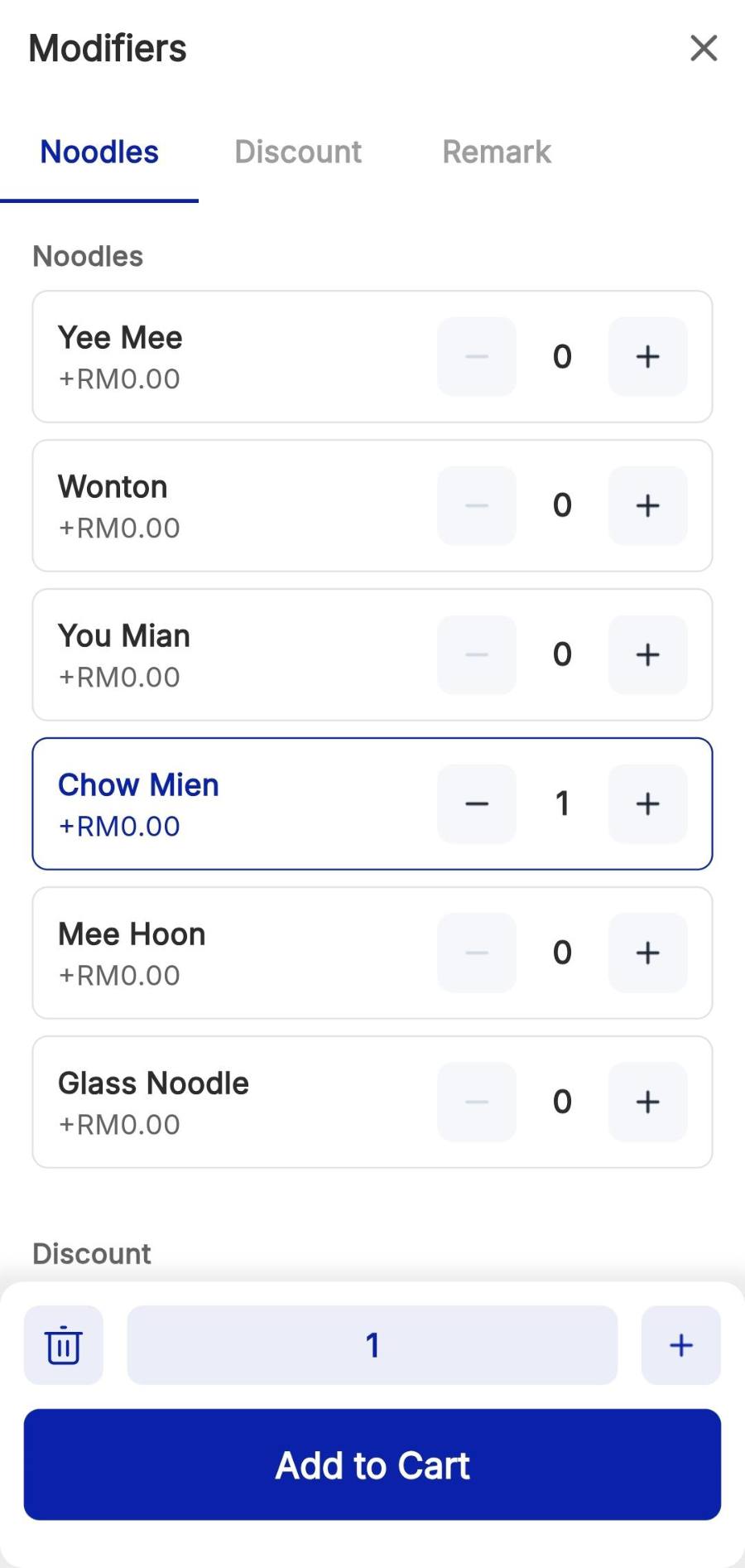
Faster than browsing when you know the item. Tap the Search icon above the categories, type the item name or Product ID, pick the result, set any modifiers, then Add to Cart and Send to Kitchen.
Taking payment for a dine-in order
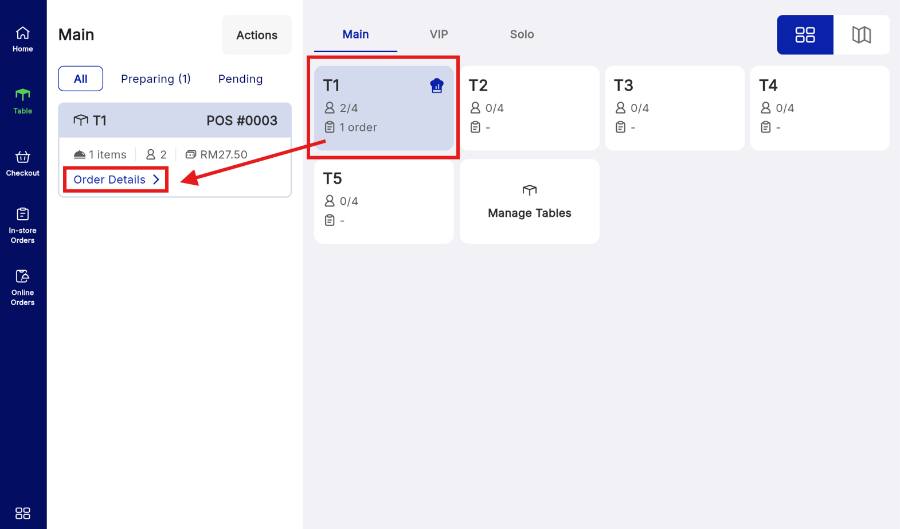
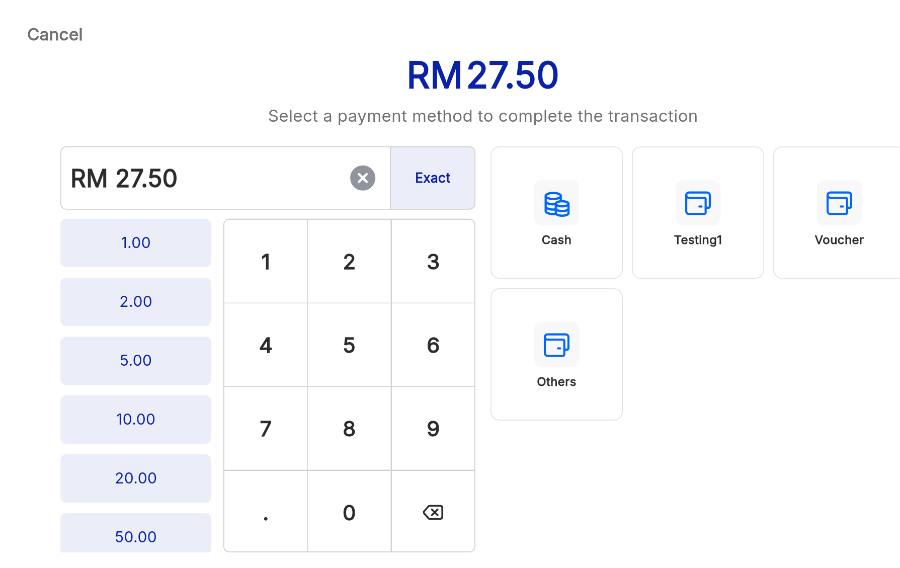
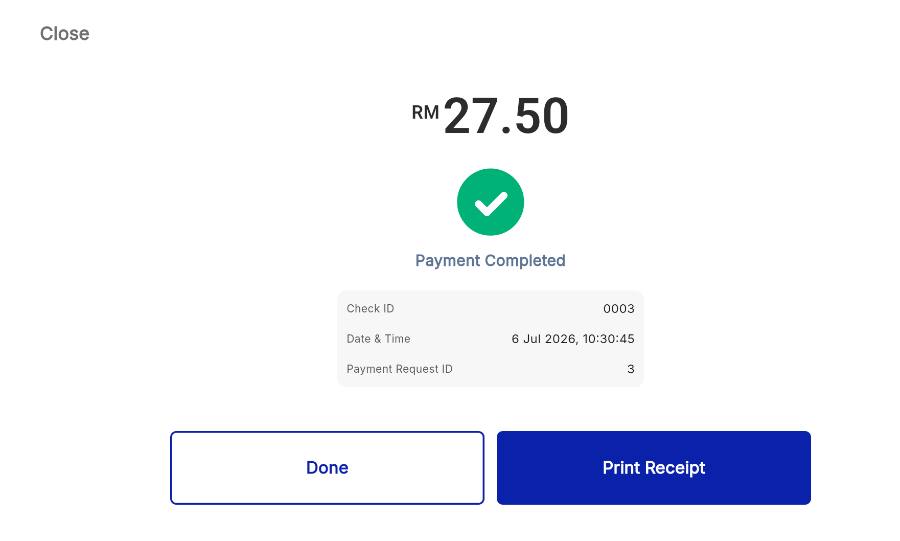
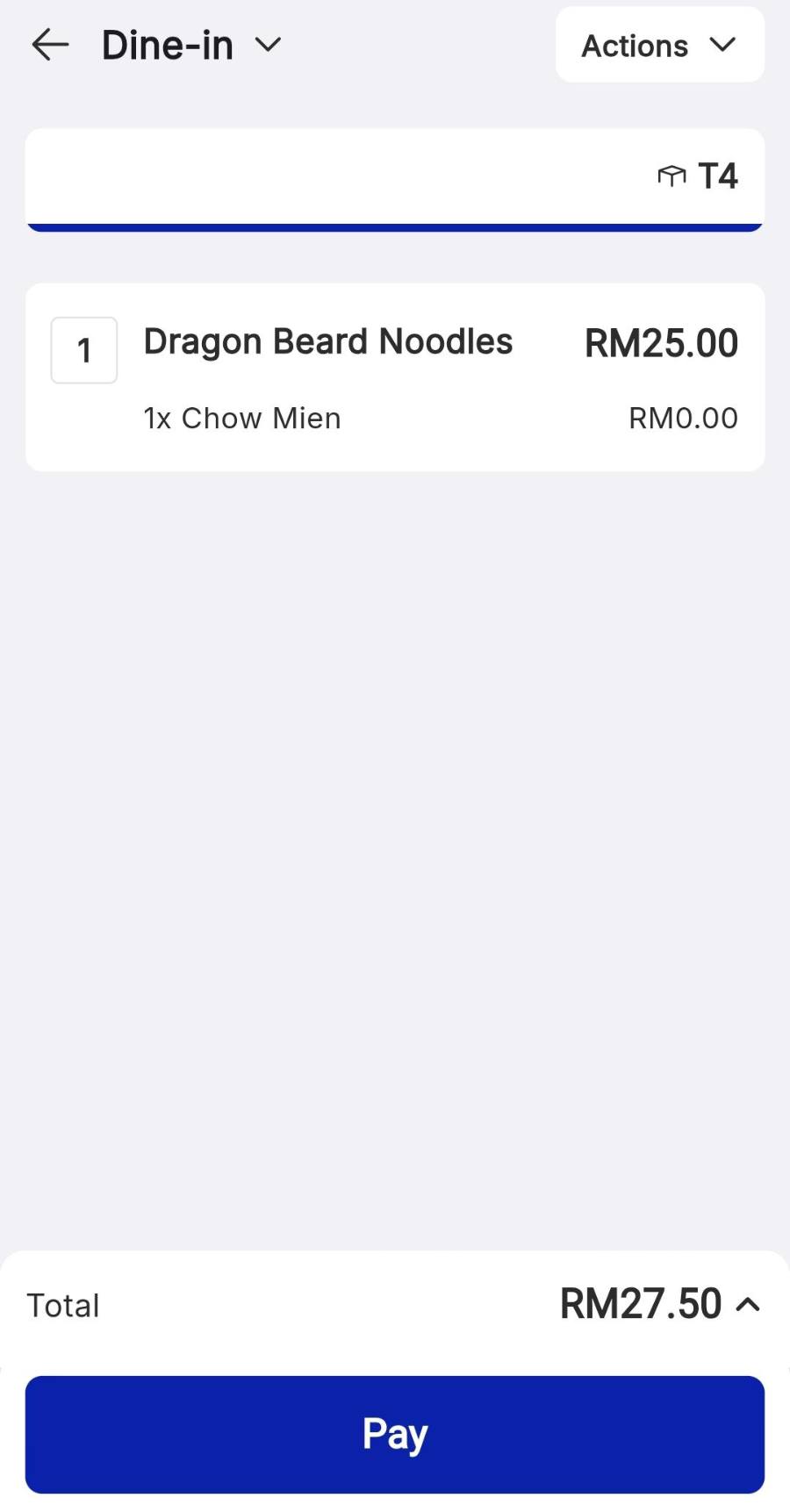
Once the order is with the kitchen, open Table and select the table it was assigned to — or find it under In-store Orders › Open Orders. Tap Pay, select the payment method, and review the receipt.
Method 1 — Sell by item
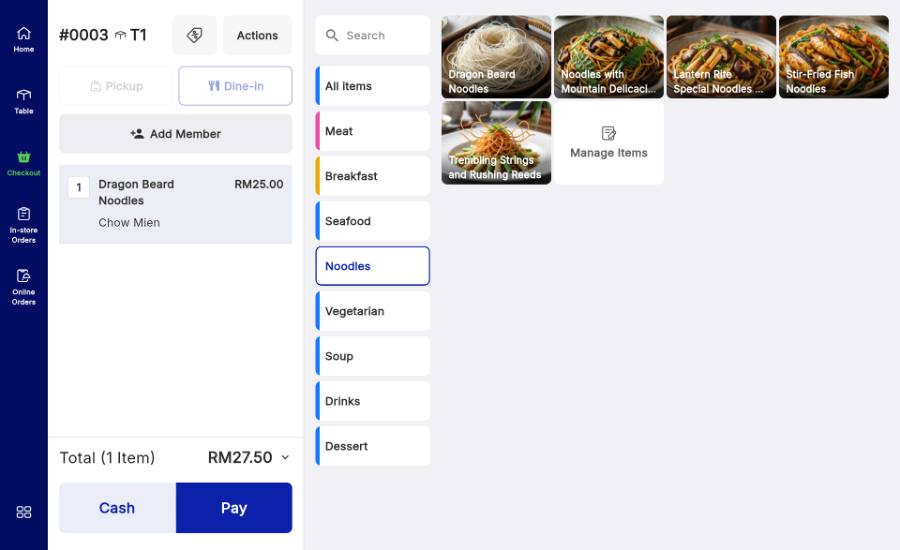
Best when your menu is neatly arranged into categories.
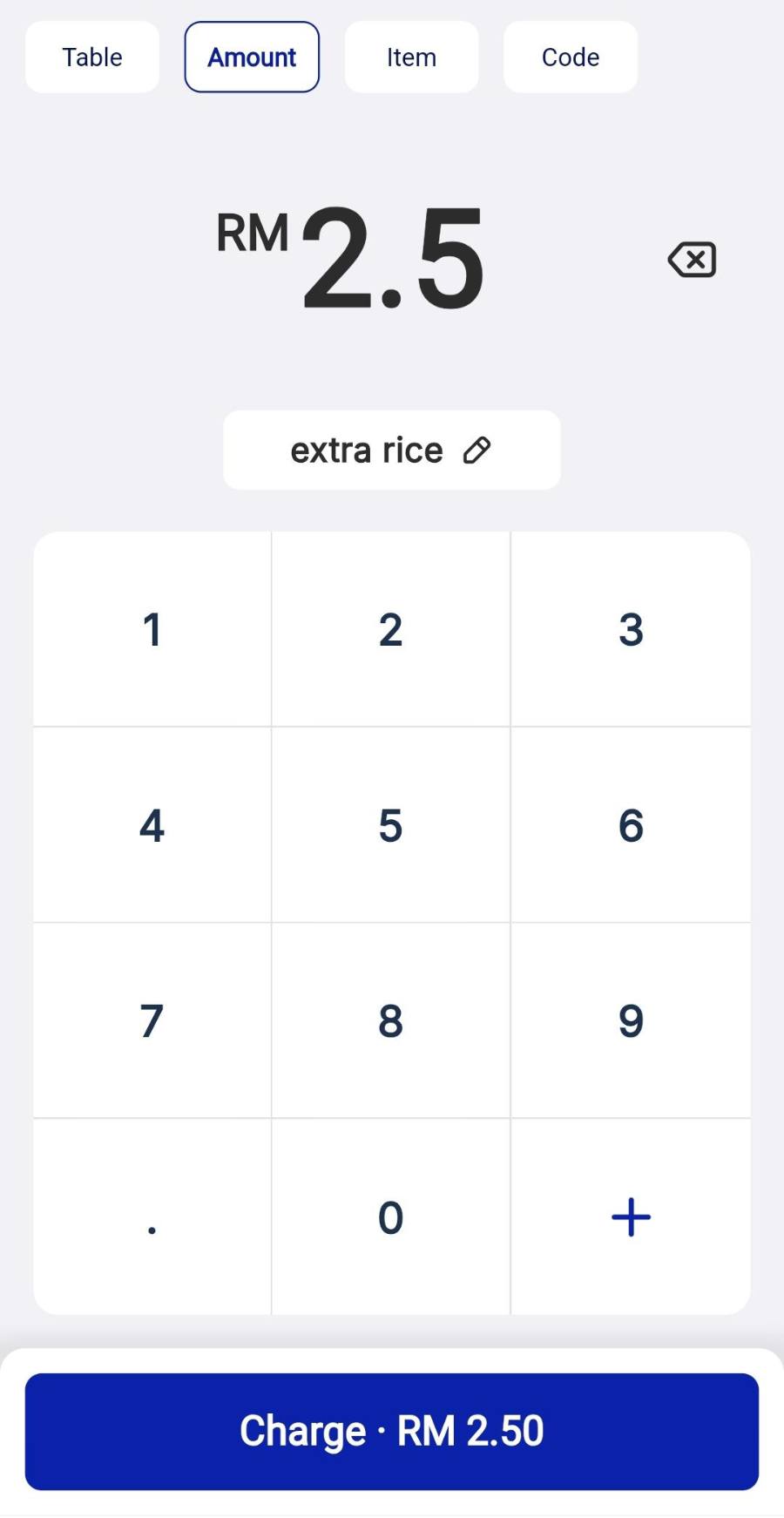
Method 2 — Sell by amount
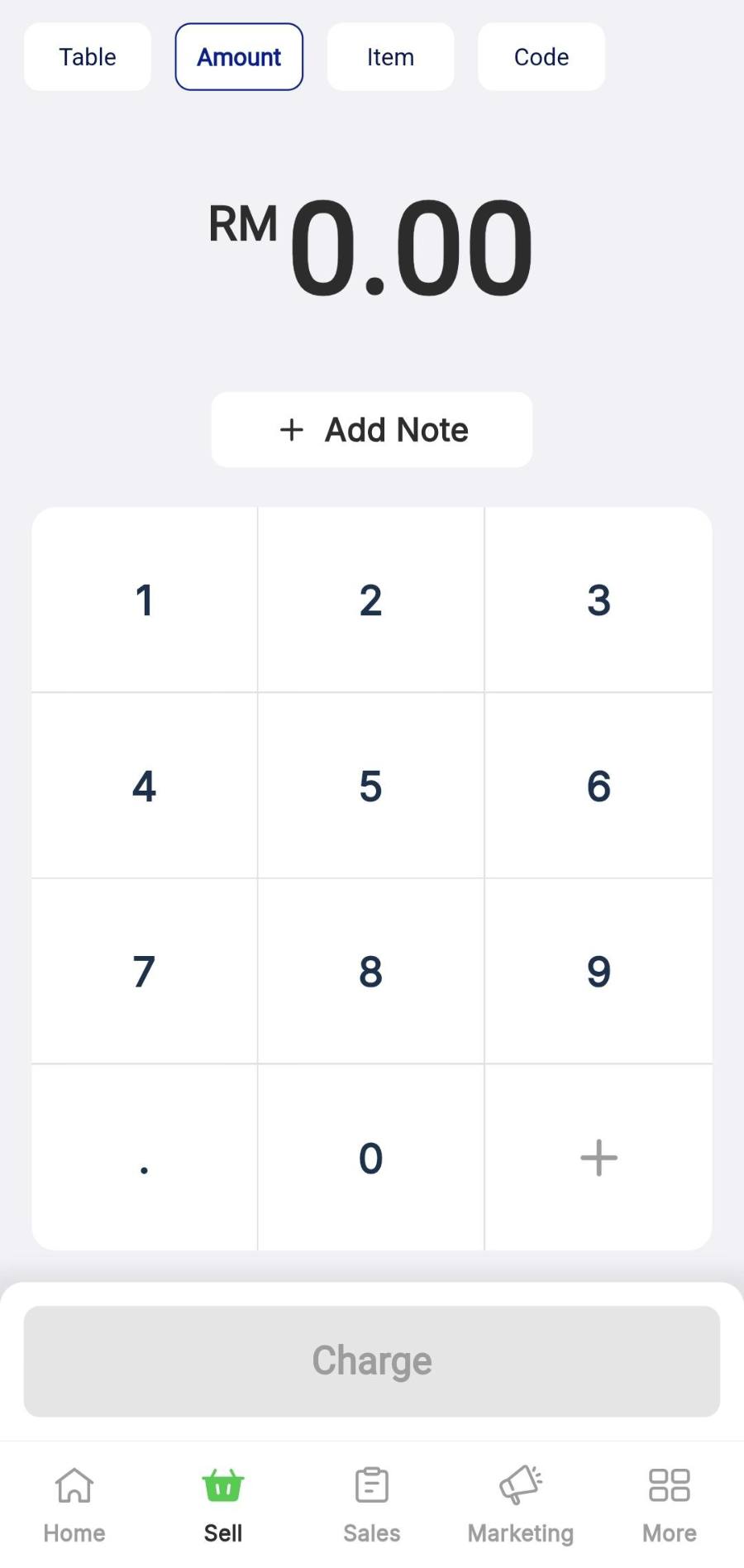
Best for off-menu items with no fixed price: mixed rice, economy rice, custom buffet plates.
Method 3 — Sell by code
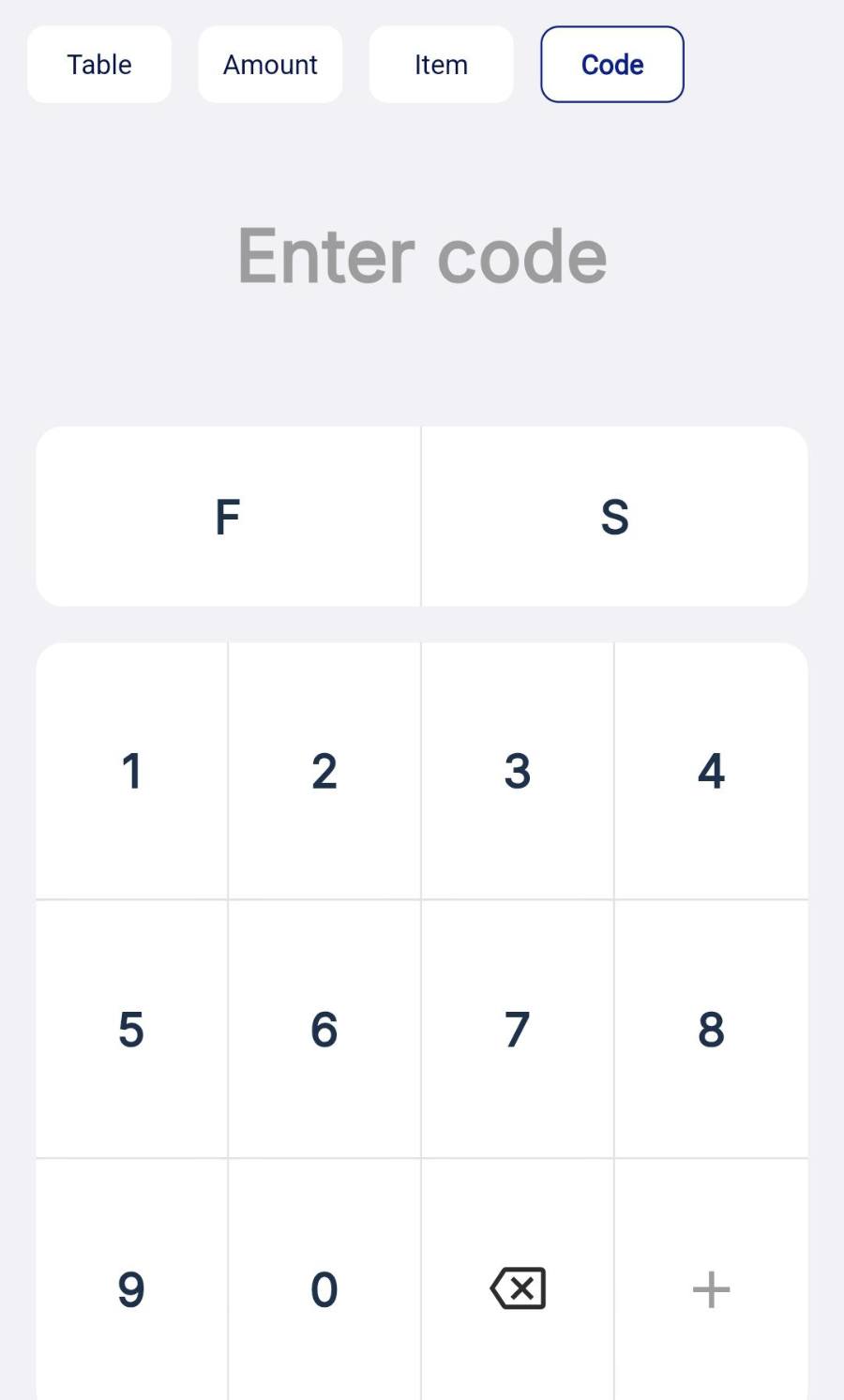
Best for high-volume counters where staff know the codes by heart.
Set the codes first. Each item needs a Quick Order Code in Item Details — for example SF1 for Golden Crab, SF2 for Golden-Tempered Jade.
WATCH IT INSTEAD
Tablet walkthrough
Phone walkthrough
IF IT LOOKS WRONG
A code returns nothing
The item has no Quick Order Code saved yet. Open Item Details and fill that field, then try the code again.
The order will not take payment
Dine-in bills are paid from the table. Open Table and select the assigned table, or find the order under In-store Orders › Open Orders.
A custom amount has no label
Amounts keyed on the keypad show as a plain charge unless you tap + Add Note. Add the note before tapping Charge.
