
Creating groups & modifiers
Groups bundle customisable options — add-ons, spice levels, sizes — that you attach to menu items, so staff capture every order variation with the right price at checkout.
Rather not read? Skip to the video walkthrough at the bottom of the page.
WHO THIS IS FOR
Store managers and business owners
configuring item customisations, add-ons, and modifier pricing.
Kitchen and operations leads
organising order modifiers for clear kitchen-display tickets.
BEFORE YOU BEGIN
Quantity logic. Min and Max control how many options a customer can pick.
Optional or required. Set Min to 0 for optional add-ons, or 1 and above to force a choice.
Pricing. Every modifier needs a price, even free ones. Enter 0.00 for those.
THE STEPS
The screens are the same whether you are on a tablet or a phone.
Open the Group tab
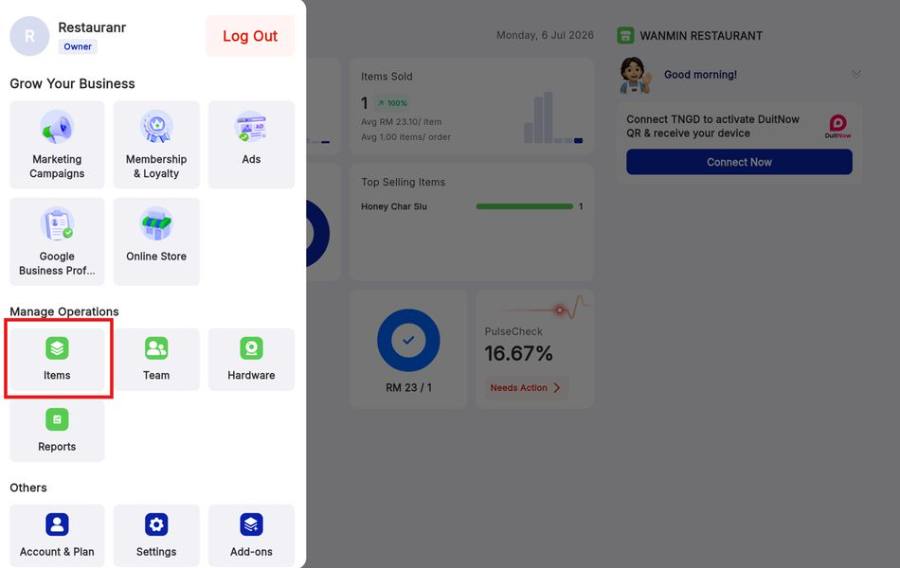
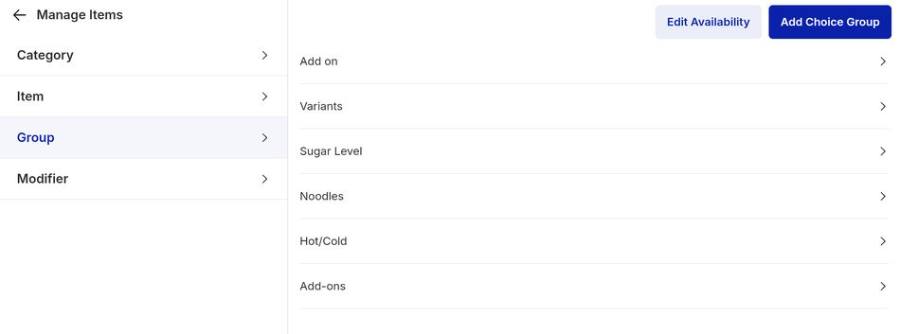
From the dashboard, tap the More icon and open Items. On the Manage Items screen, switch from the Item tab to the Group tab.
Create a new Choice Group
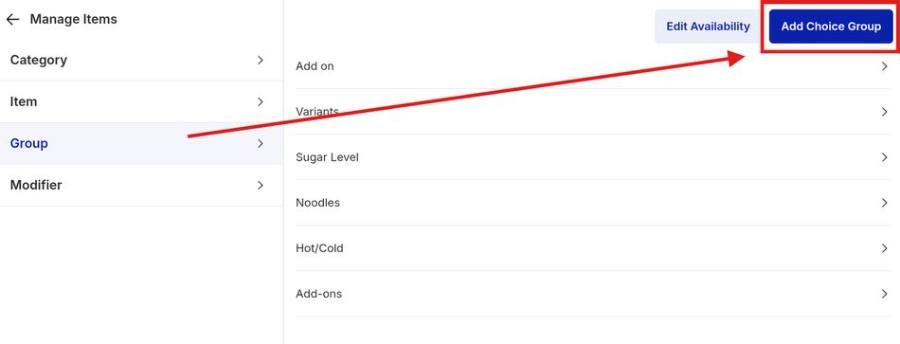
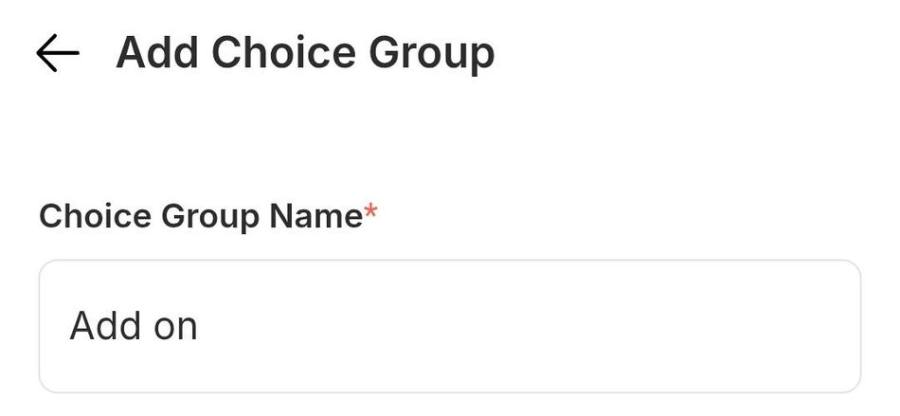
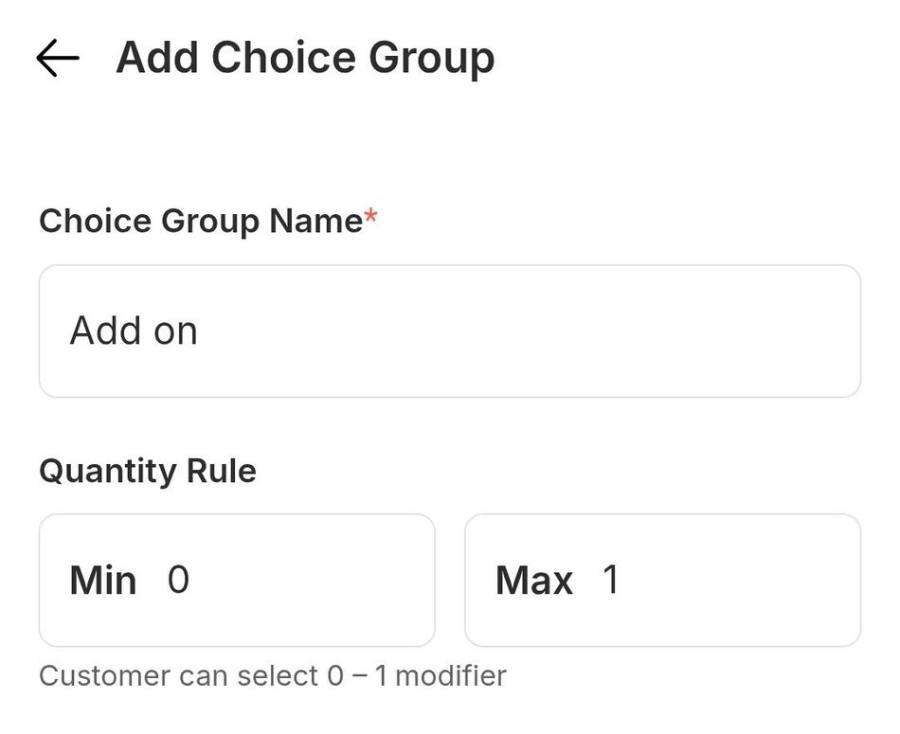
Tap the blue Add Choice Group button, then type a descriptive name in Choice Group Name — for example Add on, Sauce Choice, or Spice Level.
Set the quantity rules
Under Quantity Rule, set Min and Max to control how many options a customer can pick.
Add modifiers and prices
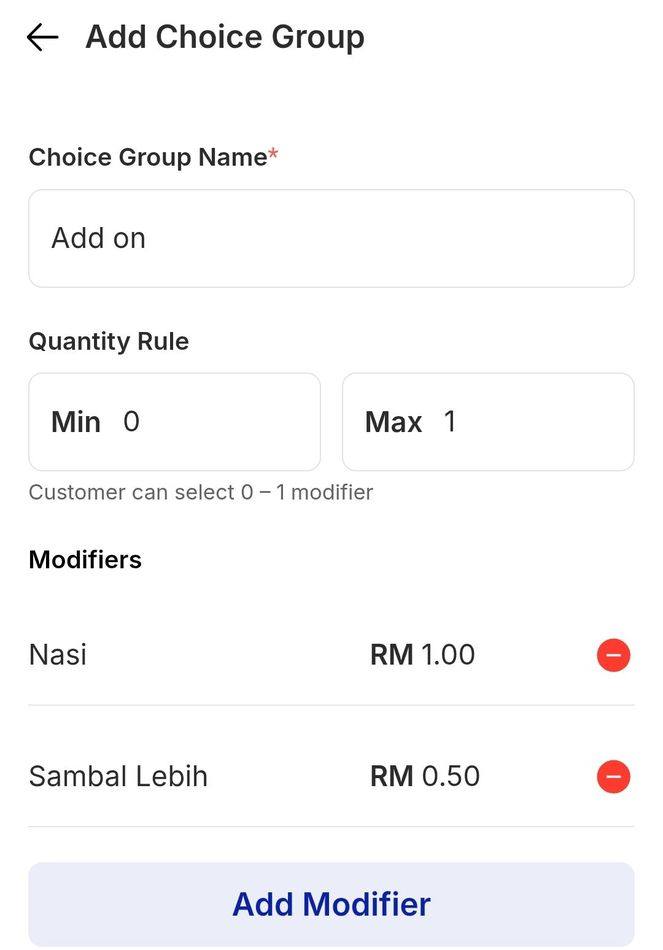
In Modifiers, enter each option with its price, then tap Add Modifier to add more — for example Nasi RM1.00, Sambal Lebih RM0.50.
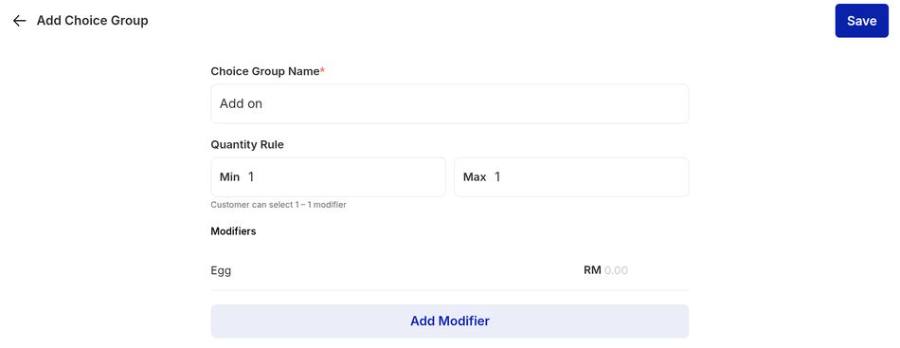
Every modifier needs a price. Fill in a price for every option, including free ones. Set those to 0.00.
Save the group
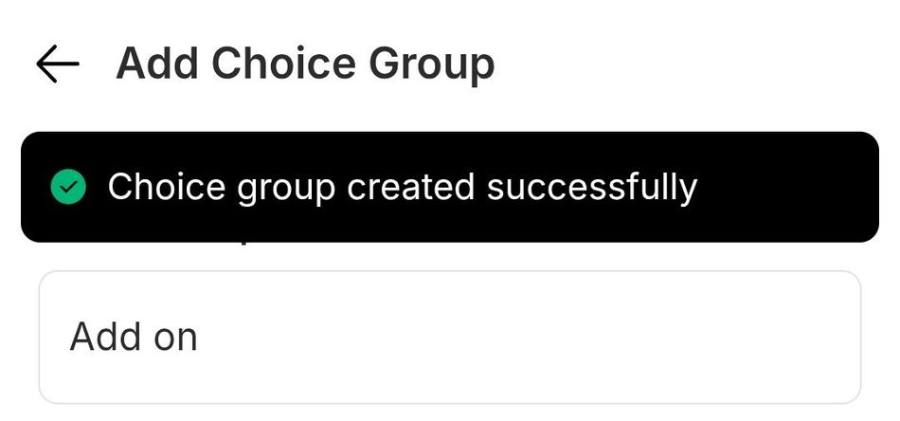
Review the option names and prices, then tap the blue Save button at the top right. A green Choice group created successfully message confirms it, and the group appears in your Group library, ready to attach to menu items.
WATCH IT INSTEAD
Tablet walkthrough
Phone walkthrough
IF IT LOOKS WRONG
The group will not save
Every modifier needs a price. Fill in 0.00 for the free ones, then tap Save again.
Staff can skip a required choice
Min is set to 0, which makes the group optional. Set Min to 1 or more to force a selection.
The group does not appear at checkout
Saving the group only adds it to your library. Open the item and attach the group to it before it shows in the order overlay.
