
Install EPOS360 from Google Play
If your device has the Play Store, use it. You get the verified build and automatic updates without touching a file.
WHO THIS IS FOR
Anyone on an iPhone or iPad
using it as the register or as a second device.
Merchants who want automatic updates
rather than reinstalling by hand.
BEFORE YOU BEGIN
Android 8.0 or higher. Not sure? Open whatismyandroidversion.com on the device itself.
No Play Store on the device? Use the APK guide instead.
THE STEPS
Pick the device in front of you.
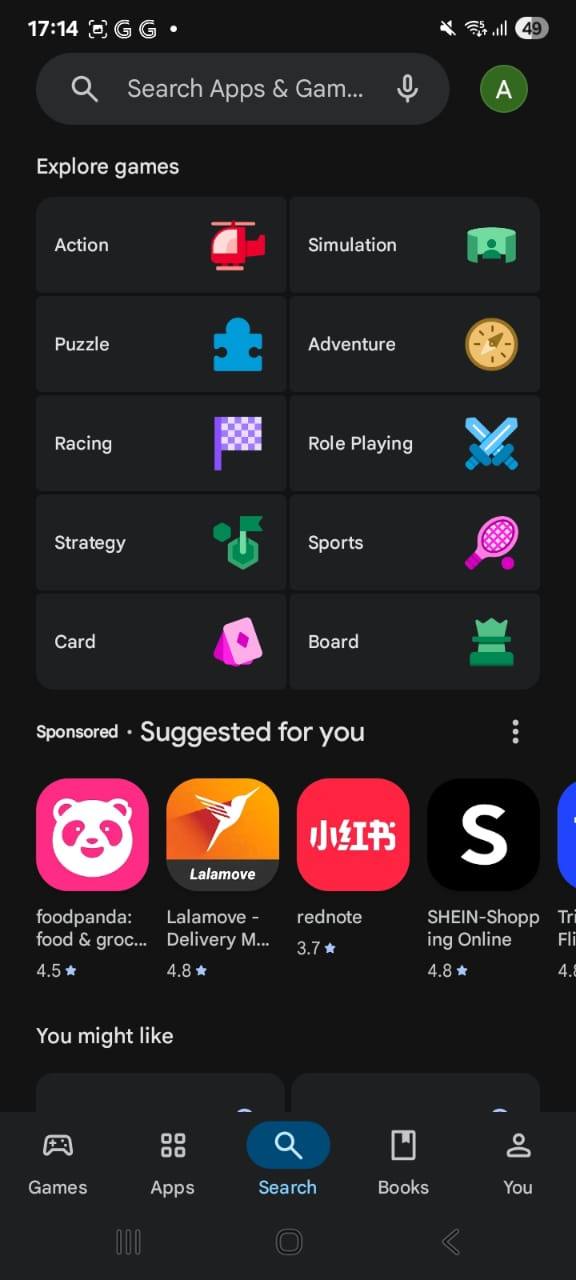
Open the App Store
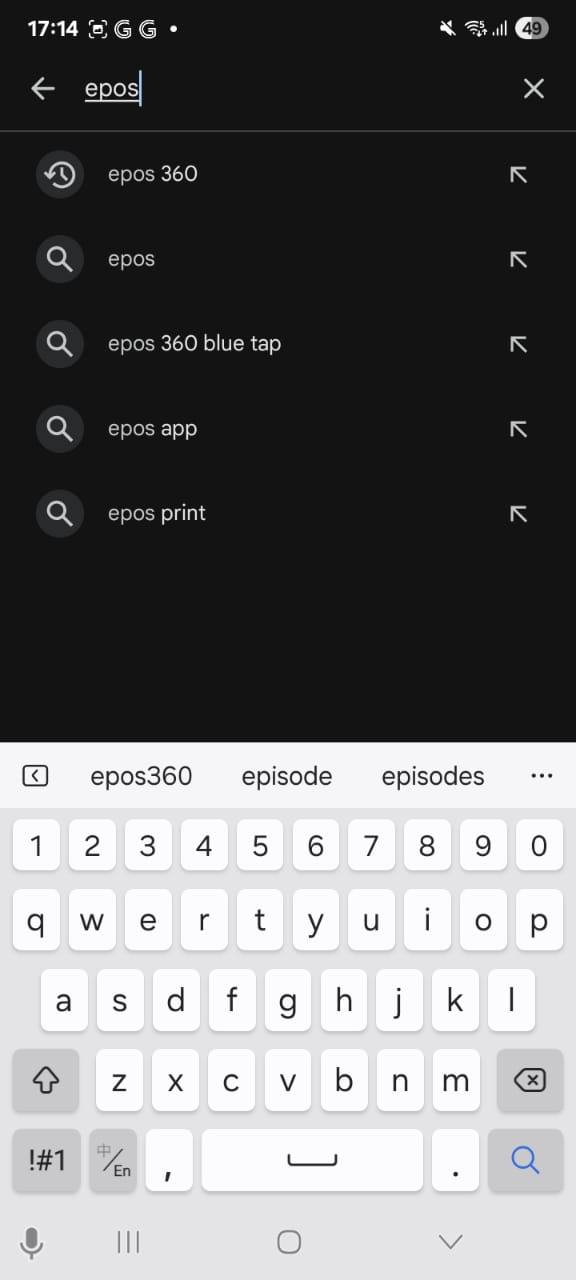
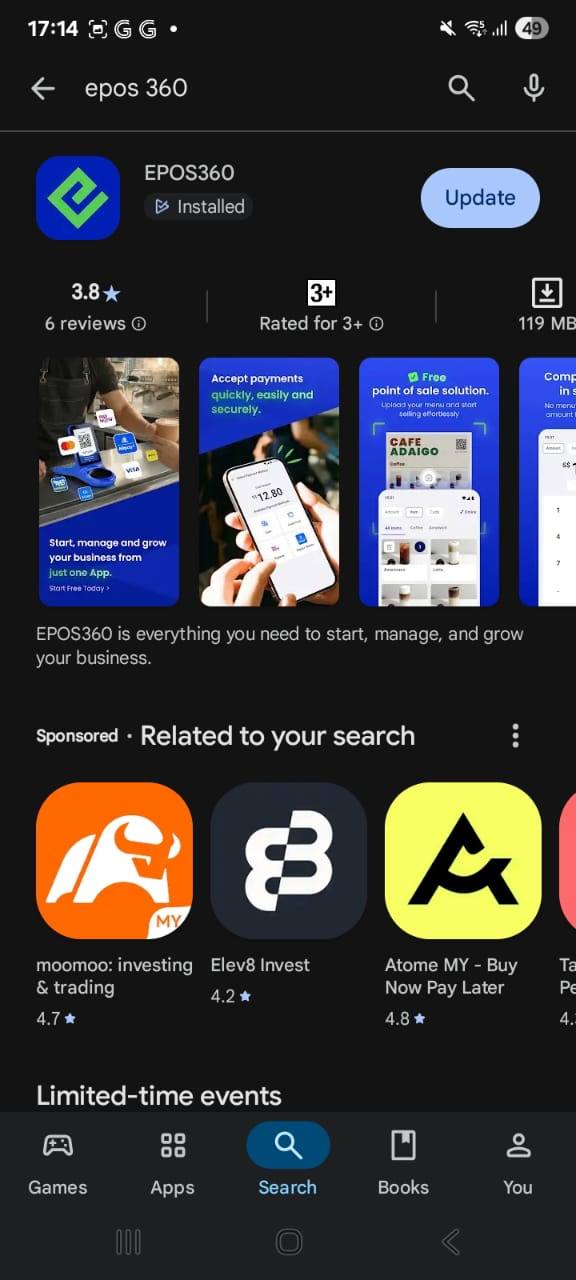
Launch the App Store, tap Search and look for Epos360. Open the official EPOS360 listing from the results.
Download and install
Tap Get — or the cloud icon if you have installed it before. Confirm with Face ID, Touch ID or your Apple ID password, wait for it to install, then tap Open.
Pick your country
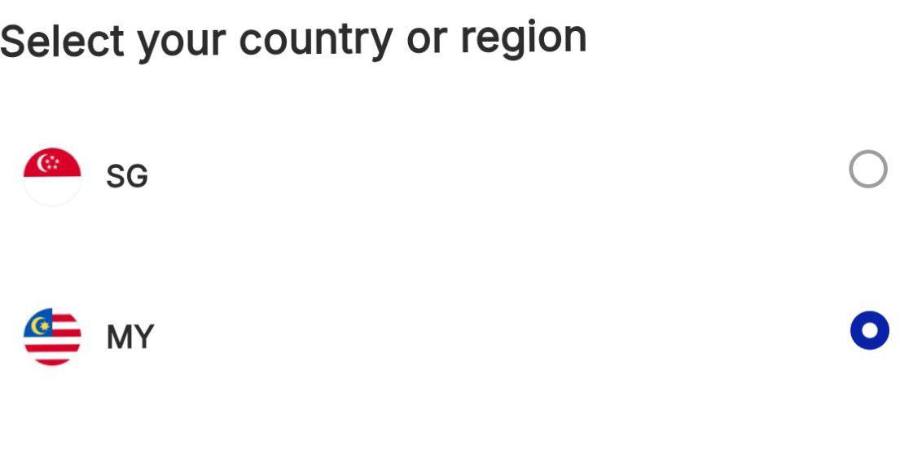
On the first screen, tick your country or region — MY for Malaysia, SG for Singapore — then tap the blue Continue button. Next: log in.
IF IT LOOKS WRONG
Play says the device is not compatible
The Android version is likely below 8.0. Check it at whatismyandroidversion.com.
No Play Store on the terminal
Some terminals ship without it. Use the APK download guide instead.
Stuck on an old version
Turn on auto-update for EPOS360 in your Play Store settings, or update it manually from the listing.
